





Help shows your license in full. This page reads it with you, then explains each message the app shows when the license needs you.
Your license and its computers
One license key covers a set number of computers. Help shows your license in full, and lists the computers that use it, so you can free a place when you change computers.
Which license covers how many computers
- The lifetime license is paid once and covers up to 3 computers, with every future release.
- The Flexible plan is paid once per computer, for as many as you chose when you bought it, from 1 to 1,000. To add computers to the same key, use the form on the website’s support page.
- The yearly plan is no longer sold. Keys bought on it keep working until their paid period ends, and Help shows when.
Prices are on the pricing page.
Your license in Help
Open Help, the fourth view in the main window’s left column. Your license is at the top right (1).
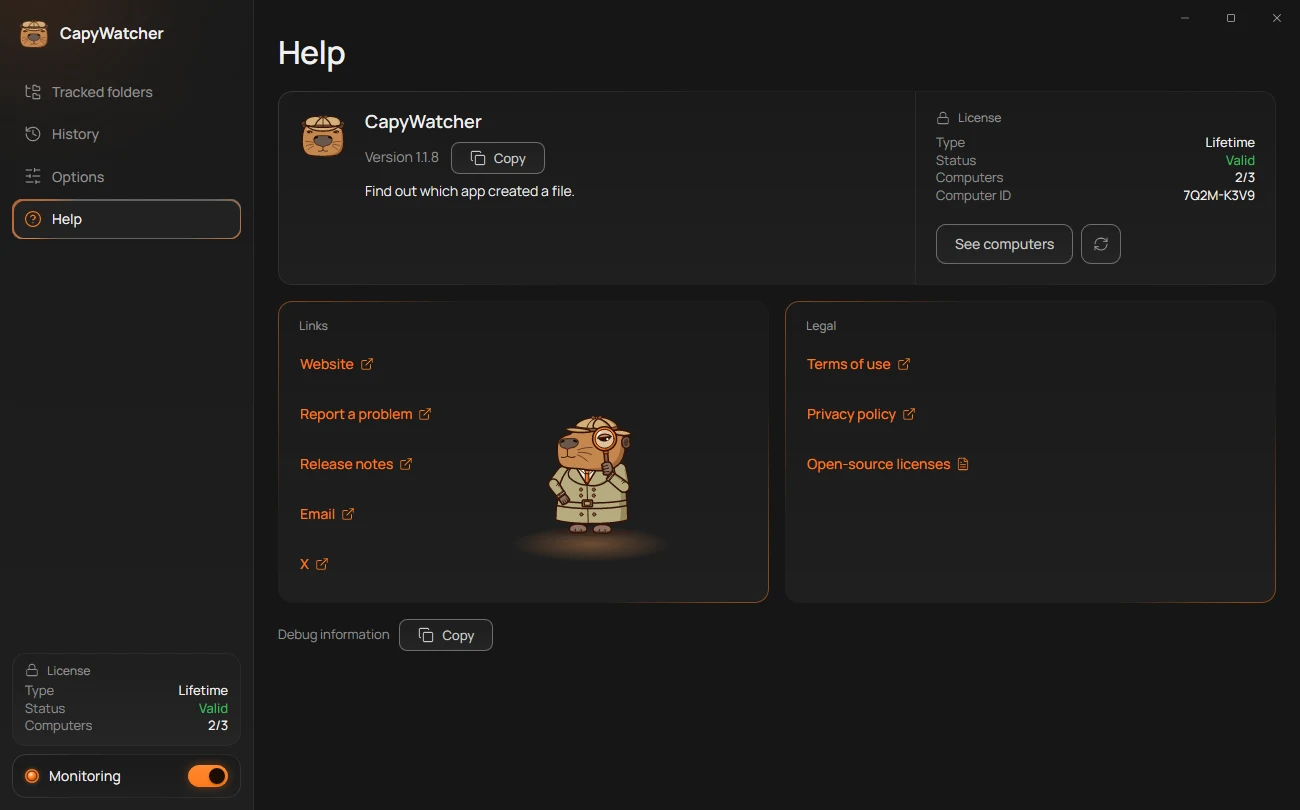
- Type, Status, Computers and Computer ID
- See computers
- Type: Free trial, Lifetime, Flexible plan or Yearly plan.
- Status: “Valid” while the license works. Any other status explains itself in brackets, such as “Invalid (expired)” after the free trial: License messages says what each means.
- Expires shows during the free trial and for a yearly plan. A lifetime license and the Flexible plan have none.
- Computers: how many computers use the key, out of how many it covers, such as 2/3.
- Computer ID: this computer’s ID, made by the app for the license. It isn’t the computer’s name, and the license server never learns that name.
The round arrow button beside See computers asks the license server for your license’s state now, rather than waiting for the daily check. It turns while it works.
The same Type, Status, Expires and Computers show in the License box at the foot of the left column. Select it to open Help.
See and remove computers
- In Help, select See computers (2).
- The list’s title says how many computers use the key, such as “Computers on this license: 2/3”. Each computer shows its ID and the day it last checked its license, such as “Last checked Nov 14, 2026”. This one is first, marked “This computer”.
- Select Remove beside a computer you don’t use anymore.
- The app asks “Remove computer 4H8X-P2TD from this license?” with that computer’s ID: “It can be added again with the key.” Select Remove.
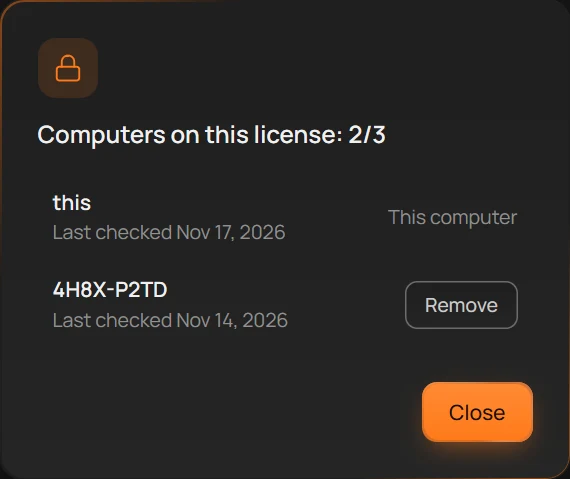
- This computer
- Remove
A key with more than 10 computers gets a search field above the list: type any part of an ID to find it.
You can remove other computers from this list, but not this one. A computer that hasn’t checked its license for 60 days frees its place by itself.
Move your license to a new computer
- Install CapyWatcher on the new computer and enter your key.
- If the key still has a free place, the new computer is activated, and you’re done. The old one keeps its place until you remove it or it stops checking.
- If the app says the key is already active on all its computers, open Help on another computer that uses the key, select See computers and remove the old one. Then select Activate again on the new computer.
A computer can’t remove itself from its own list, so the old computer is removed from another one. If no other computer uses the key, write to support from the support page, or wait 60 days for the old computer’s place to free itself.
The license check
Once a day, the app’s service checks your license with the license server, online. It sends an ID made for this computer and the license data the server gave it last time, never your files, folders, programs or the computer’s name. If the computer stays offline, the app keeps working: only after 30 days without a check does it ask you to connect. More in the privacy policy.
Tip
This computer has no usable TPM? Help may then say “This computer has no usable TPM, so the license is tied to a key stored in Windows. The app works the same.” Nothing changes for you.
License messages
When something about your license needs you, the app says so in a banner at the top of History and in the answer window, and in Help beside your license. The License box at the foot of the left column shows the status in short. In every case, monitoring goes on recording new files: only the answers can be hidden until the message is dealt with.
The free trial has ended
“Your free trial has ended. A license shows who created your files.” Status: “Invalid (expired)”.
Select Buy a license to open the pricing page, or Enter key if you have one. Every answer shows again once a license is active: see The free trial.
Couldn’t check your license for 30 days
“Couldn’t check your license for 30 days. Connect to the internet to see who created your files again.” Status: “Invalid (offline)”.
The app checks your license online once a day, and works offline for 30 days in between. Connect the computer to the internet and select Check now. The answers come back as soon as one check succeeds.
Someone tried to use your key on other computers
“Someone tried to use your key on other computers. If you didn’t share it, write to support for a new key.” Status: “Valid (key flagged)”.
Your license still works. The message means the license server refused your key on computers beyond the ones it covers. If you gave the key to someone, remove it from computers you don’t use: see Your license and its computers. If you didn’t, select Contact support and ask for a new key: the old one then stops working everywhere, so whoever has it can’t use it.
This key looks shared
“This key looks shared. Remove computers you don’t use, or write to support for a new key.” Status: “Valid (key flagged)”.
The server has seen signs that the key is used by more people than it covers. Select See computers and remove the ones that aren’t yours, or select Contact support for a new key. The message goes away after 30 days with no more signs.
The key was replaced or refunded
“This key was replaced or refunded. Enter your newest key to see who created your files.” Status: “Invalid (replaced)”.
A key is replaced when support gives you a new one, and retired when its purchase is refunded. Select Enter key and enter the newest key you received. For refunds, see the refund policy.
The key can’t be used anymore
“This key can’t be used anymore. Write to support by email or X DM.” Status: “Invalid (blocked)”.
Select Contact support, or write from the support page, with the order number from your receipt.
The key is on all its computers
“This key is already active on 3 computers.” with “Remove one from one of those computers, or write to support for a new key.” This shows when you activate a key whose places are all taken. Remove an old computer from another one that uses the key, then activate again: see Your license and its computers.
Activated too often this month
“This key was activated on new computers too often this month. Try again on Dec 1, 2026, or write to support.” A key can be activated on a limited number of new computers each month. Wait until the day it names, or write to support.
The yearly plan
The yearly plan is no longer sold. If you still have one, its messages say when it renews, when it ended and until when you can renew it, with the status “Valid (grace)” during the 14 days after it ends. Select Renew or Manage plan in the message.
Other statuses
- “Valid”: the license works.
- “Not checked”: the app’s service hasn’t run its first license check yet, such as just after the app was installed.
Important
No license message stops recording. Monitoring records new files in your tracked folders in every case, and they show with their program once the license works again.