





Two choices per tracked folder deal with files that disappear. Delete alerts tell you which program deletes them, and a lock refuses deletes, moves and renames in the folder.
Delete alerts
A program that starts deleting files in a folder you care about should not go unnoticed. With delete alerts on, CapyWatcher shows a Windows notification within a couple of seconds, naming the program and counting the files it deleted, with buttons to lock the folder or stop the program.
Alerts are off on every folder until you turn them on, so builds and caches don’t flood you with notifications.
Turn on alerts for a folder
- Open CapyWatcher and select Tracked folders in the left column.
- Find the folder in the tree. It must be tracked: its box is checked, as Choosing folders to track shows.
- Select the bell at the right end of its row.
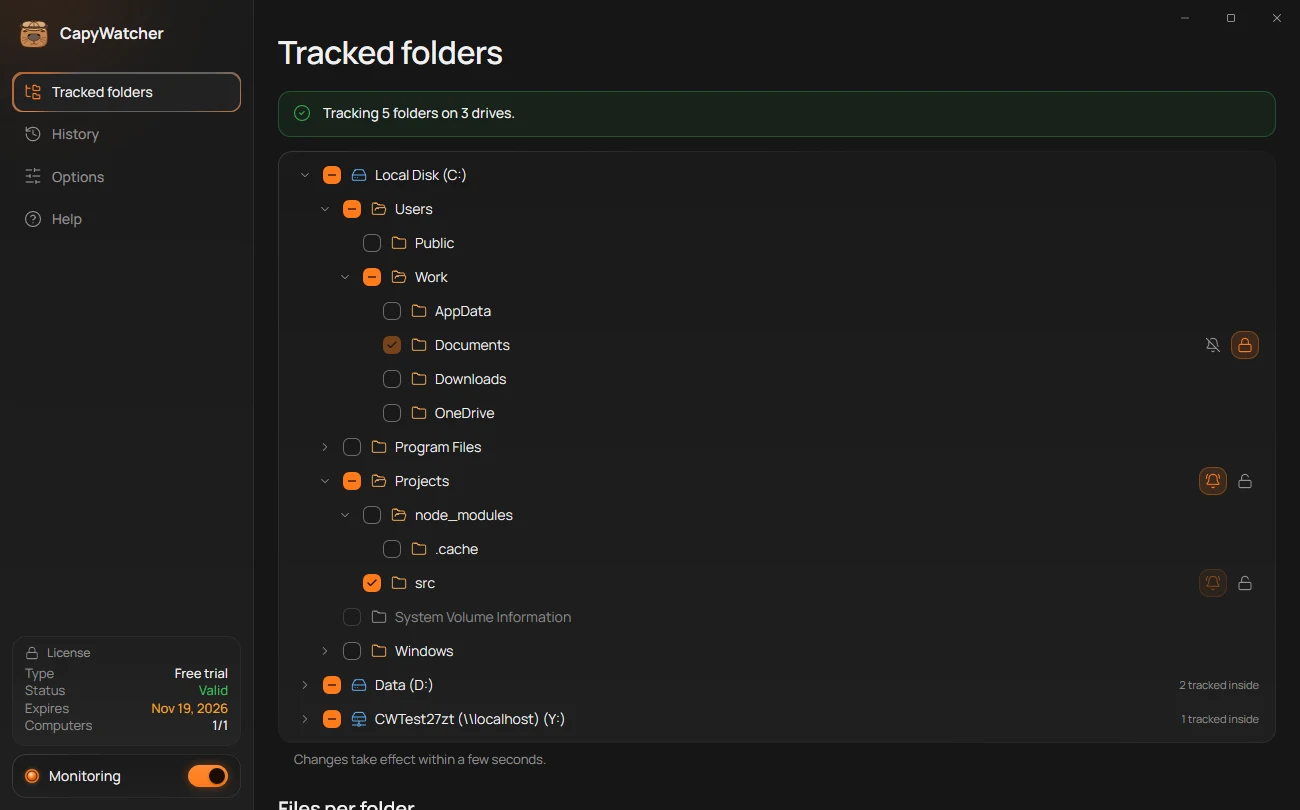
- Alerts on
- Alerts off
- On with the folder above
Before it turns alerts on, the app asks:
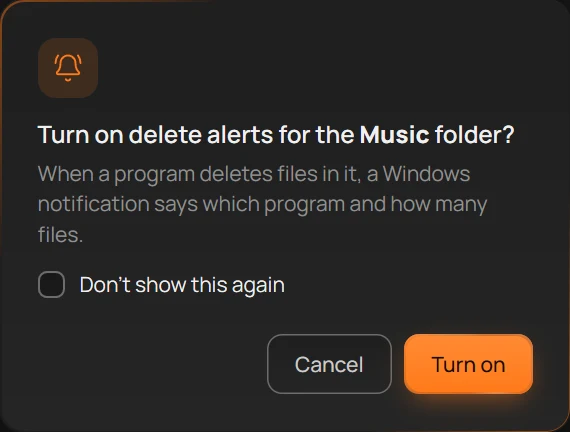
- What you’ll get
- Don’t show this again
- Turn on
Select Turn on (3). Back in the tree, the bell shows on, like the one on Projects in the first picture, with the tooltip “Alerts on: you’re told when files in the Projects folder are deleted”, with your folder’s name. Check Don’t show this again (2) to skip the question next time. Options can bring it back.
Folders inside a folder with alerts
Alerts cover every folder inside, at any depth. Their bells show on and greyed out (3), with the tooltip “Alerts on with the Projects folder.”, with the folder’s name. Turn off the folder above, and the ones inside go back to their own choice.
Folders where alerts could come often
Windows and programs delete files in some folders all the time: inside AppData, ProgramData and Program Files, for example. On those, the app warns before it turns alerts on: “Windows and programs delete files here often, so you may get many alerts.” You can still turn them on.
What the notification says
Every delete notification is explained in Delete notifications.
When a program deletes files in a folder with alerts on, a notification titled “Files deleted in the Projects folder” says, for example, “node.exe deleted 12 files in the last 5 seconds.” While the program keeps deleting, the same notification counts on without popping up again. After a minute with no delete, the next one is new.
Two buttons come with it:
- Lock folder locks the folder at once, so the program can’t delete the rest. On a folder that can’t be locked, the button isn’t there. See Locking a folder.
- Stop node.exe, with the program’s name, ends that program. It isn’t offered for File Explorer, for CapyWatcher itself, or for a program running as SYSTEM or another account.
Select the notification itself to open Tracked folders.
Turn alerts off
Select the bell again. The app asks “Turn off delete alerts for the Projects folder?”: “You won’t be told when files in it are deleted.” Select Turn off. Unchecking a folder in the tree turns its alerts off too.
On a network folder, the bell works for deletes made by programs on this computer only, and its tooltip says so. More on Network drives and shared folders.
Tip
The bell is also in Explorer’s right-click menu, under CapyWatcher: see Locks and delete alerts from the menu.
Important
An alert tells you what happened. It doesn’t stop the delete, and it doesn’t bring files back: a lock refuses deletes before they happen. Alerts show only while CapyWatcher runs, in the window or in the tray, and while monitoring is on. Deletes made while it was closed show nothing later.
Locking a folder
A locked folder refuses every delete, move and rename of the files and folders in it, whichever program asks, yours included. It’s the one thing in CapyWatcher that stops something from happening, so it fits the folders whose files must stay: invoices, a thesis, a project an AI agent works next to.
Lock a folder
- Open CapyWatcher and select Tracked folders in the left column.
- Find the folder in the tree. It must be tracked: its box is checked, as Choosing folders to track shows.
- Select the lock at the right end of its row.
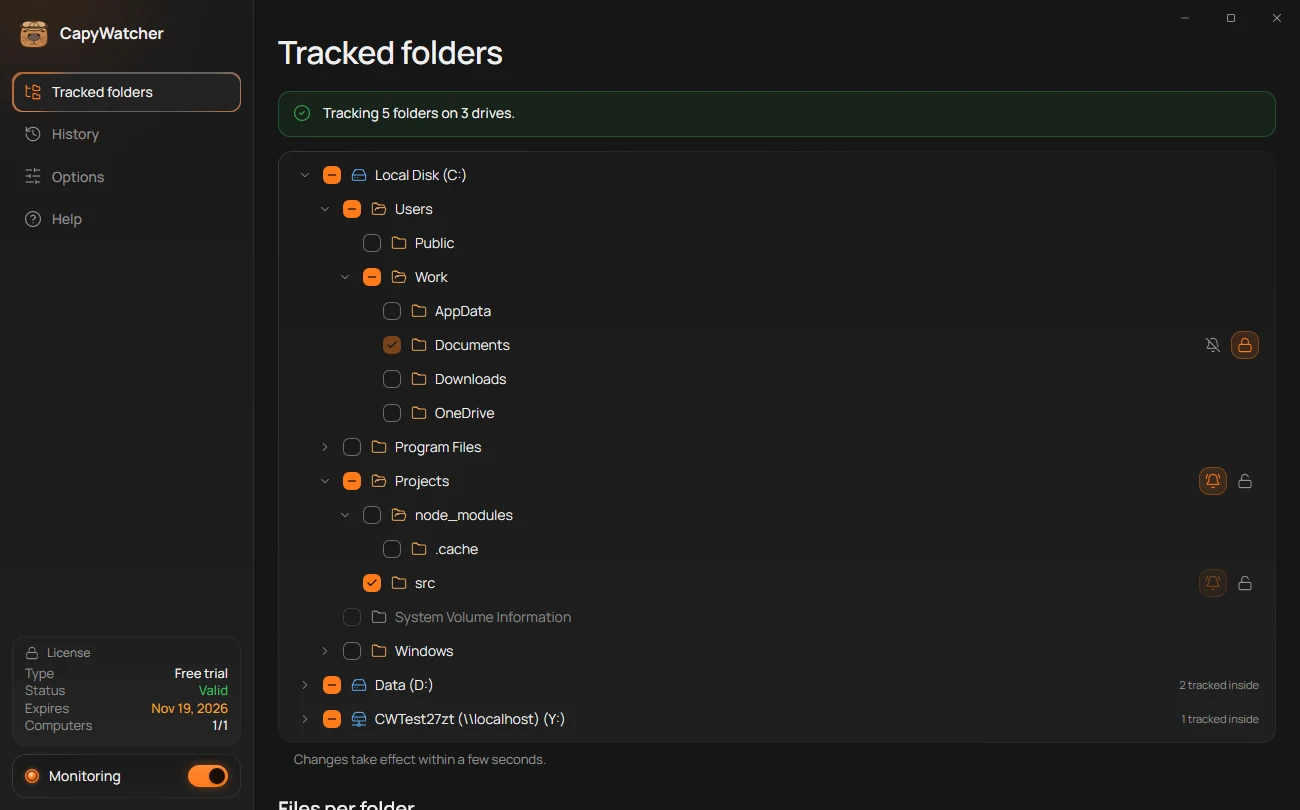
- Locked
- Not locked
- The box of a locked folder
The app asks first, with your folder’s name:
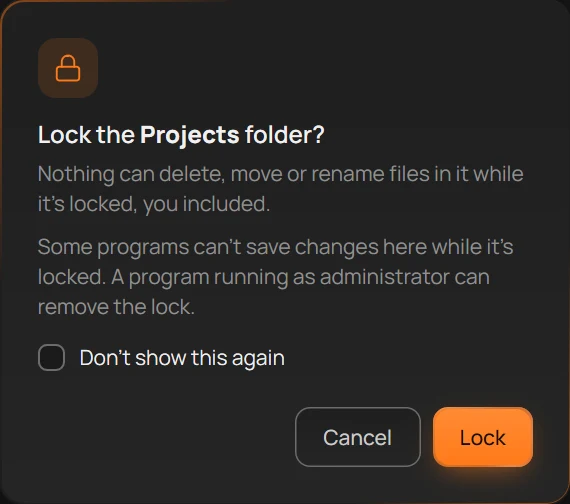
- What a lock can’t stop
- Don’t show this again
- Lock
Select Lock (3). Within a few seconds the folder is locked, and its lock shows on, like the one on Documents in the picture of the locked tree. Check Don’t show this again (2) to skip the question next time. Options can bring it back.
What a lock stops, and what still works
While the folder is locked:
- No program can delete, move or rename its files and subfolders, for every Windows account. A program that tries gets Windows’ “access denied”.
- New files can still be saved in it, and the app still records them.
- Files can still be changed. A lock doesn’t stop a program from writing inside a file it opens.
- Some programs can’t save changes, as the question’s second line (1) says. They save by writing a new copy and renaming it over the old one, and a lock refuses that rename.
A locked folder’s box is greyed out, as on Documents in the picture of the locked tree, so you can’t stop tracking it by mistake. Unlock it first. The same goes for a folder that holds a locked folder, or sits inside one.
Every folder inside a locked folder is locked with it. Their locks show on and greyed out, with the tooltip “Locked with the Projects folder.”, with the folder’s name.
Unlock a folder
Select the lock again. The app asks “Unlock the Projects folder?”: “Files in it can be deleted, moved and renamed again.” Select Unlock.
Folders that warn before they lock
Some folders can be locked, but locking them can break something. For these, a warning replaces the question, and it always shows, even if you turned the questions off:
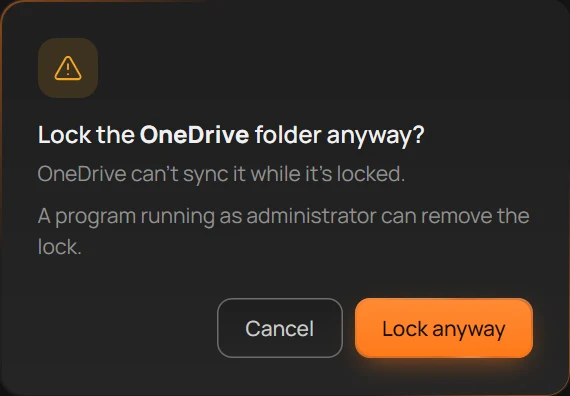
- What could break
- Lock anyway
- Cancel
- A folder inside
Program Files: “The programs in it can’t update or uninstall while it’s locked.” - A folder inside
AppDataorProgramData: “The program that keeps its settings here may stop working.” - Your OneDrive or Dropbox folder: “OneDrive can’t sync it while it’s locked.” or the same for Dropbox.
- The Public folders: “Programs can’t remove the shortcuts they put here.”
Select Lock anyway (2) if you’re sure, or Cancel (3).
Folders that can’t be locked
On some folders the lock is greyed out, and its tooltip says why:
- Folders Windows and your programs need, such as a drive itself, the Windows folder,
Program Filesas a whole, your user folder andAppData: “The Projects folder can’t be locked: Windows and your apps need to change files in it.”, with the folder’s name. - CapyWatcher’s own folders: “CapyWatcher needs to change files in the Projects folder.”
- A link to another folder: “The Projects folder is a link to another folder. Lock that folder instead.”
- A folder on a drive that can’t hold a lock, such as a USB stick formatted as FAT32 or exFAT.
- A folder on another computer: see Network drives and shared folders.
When a program removes the lock
The lock is a permission that Windows keeps on the folder, so it stays when CapyWatcher is closed or monitoring is off. A program running as administrator can remove it, as the question says. CapyWatcher checks every locked folder every 2 seconds and puts a removed lock back, with a notification while the app runs: “Lock put back on the Projects folder”, naming the program when Windows reports it.
A program that deletes in the moment between removing the lock and the app putting it back still gets through. The delete alerts tell you when that happens.
Tip
You can lock a folder from Explorer’s right-click menu too, or straight from a delete alert’s Lock folder button: see Locks and delete alerts from the menu.
Important
A lock refuses deletes, moves and renames, not changes inside files: a program can still empty or overwrite a file in a locked folder. A program running as administrator can remove the lock for a moment. Uninstalling CapyWatcher removes every lock it set.