





Support, your license and the app’s version are all in one view, Help. It also holds the debug information support may ask for.
The Help view
Help is the fourth view in the main window’s left column. It’s where you reach support, check which version you have and see your license.
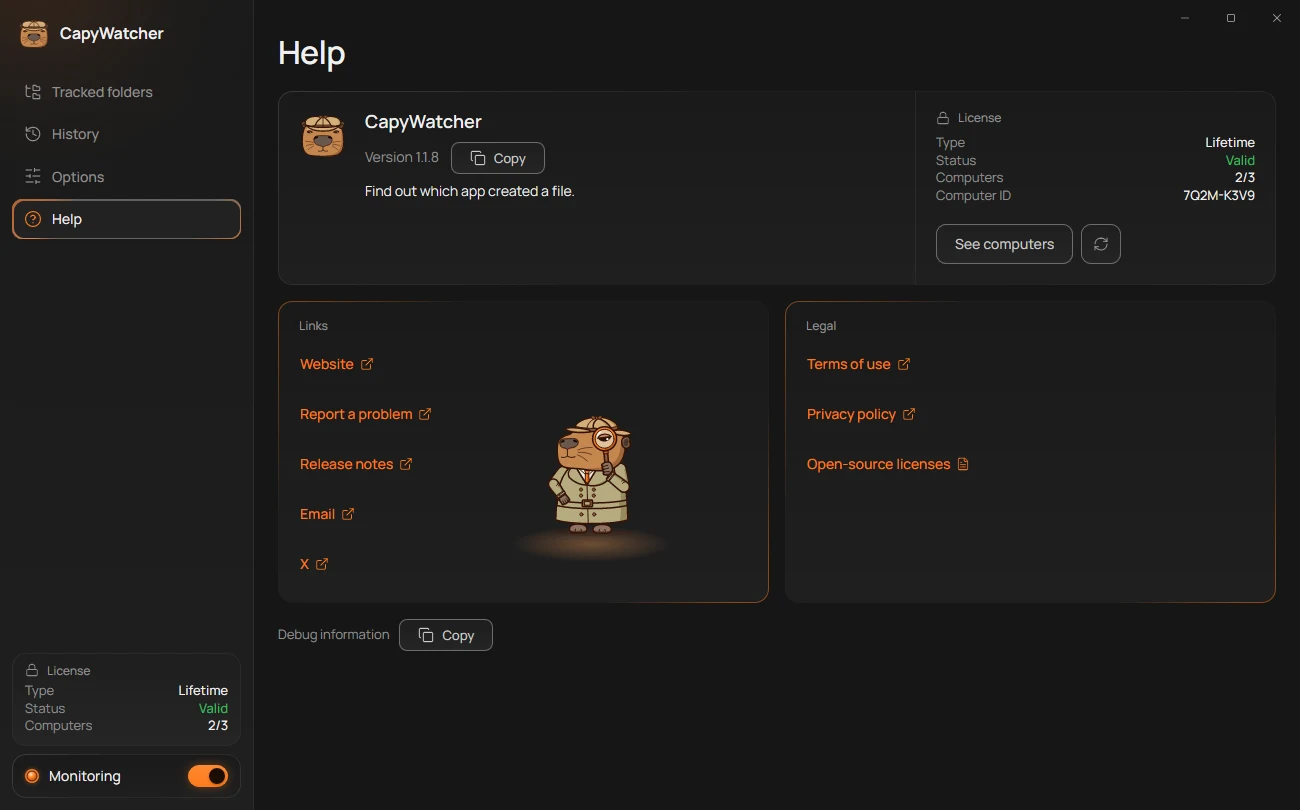
- The version and Copy
- Your license
- Links
- Legal
- Debug information
The version
At the top, under the app’s name, Version 1.1.8 (1) shows the version you have. Select Copy beside it to copy the app’s name and version, ready to paste into a message to support. The button says “Copied” for a moment.
To look for a newer version, see Updates.
Your license
The License box (2) shows your license’s type, status and computers, this computer’s ID and the buttons that fit your license, such as See computers, or Buy a license and Enter key during the free trial. Your license and its computers explains each line, and License messages each message that can show there.
Links
Each link (3) opens in your browser, or in your email app for Email:
- Website opens capywatcher.com.
- Report a problem opens the support page, which says what to put in your message.
- Release notes opens the release notes, what changed in each version.
- Email starts a message to support@capywatcher.com.
- X opens CapyWatcher’s X profile, where you can send a DM.
Support answers by email and by DM on X. There’s no phone line and no chat.
Legal
The legal links (4) open the Terms of use and the Privacy policy on the website. Open-source licenses opens a file that comes with the app, listing the open-source parts it’s built with and their licenses. If that file is missing, the app says “The file is missing. Reinstall the app to get it back.”
Debug information
Debug information (5), at the bottom, copies a few lines about your setup for a message to support: see Debug information.
Tip
If a link doesn’t open, the app says “Couldn’t open your browser. Try again.” or “Couldn’t open your email app. Try again.” Check that Windows has a default browser and email app, in Settings, under Apps, then Default apps.
Debug information
When you report a problem, the debug information tells support how your app is set up, in ten short lines, so you don’t have to describe it.
Copy it
- Open Help, the fourth view in the main window’s left column.
- At the bottom, next to Debug information (1), select Copy (2).
- Paste it into your email or your DM on X, under what you did, what you expected and what happened instead.
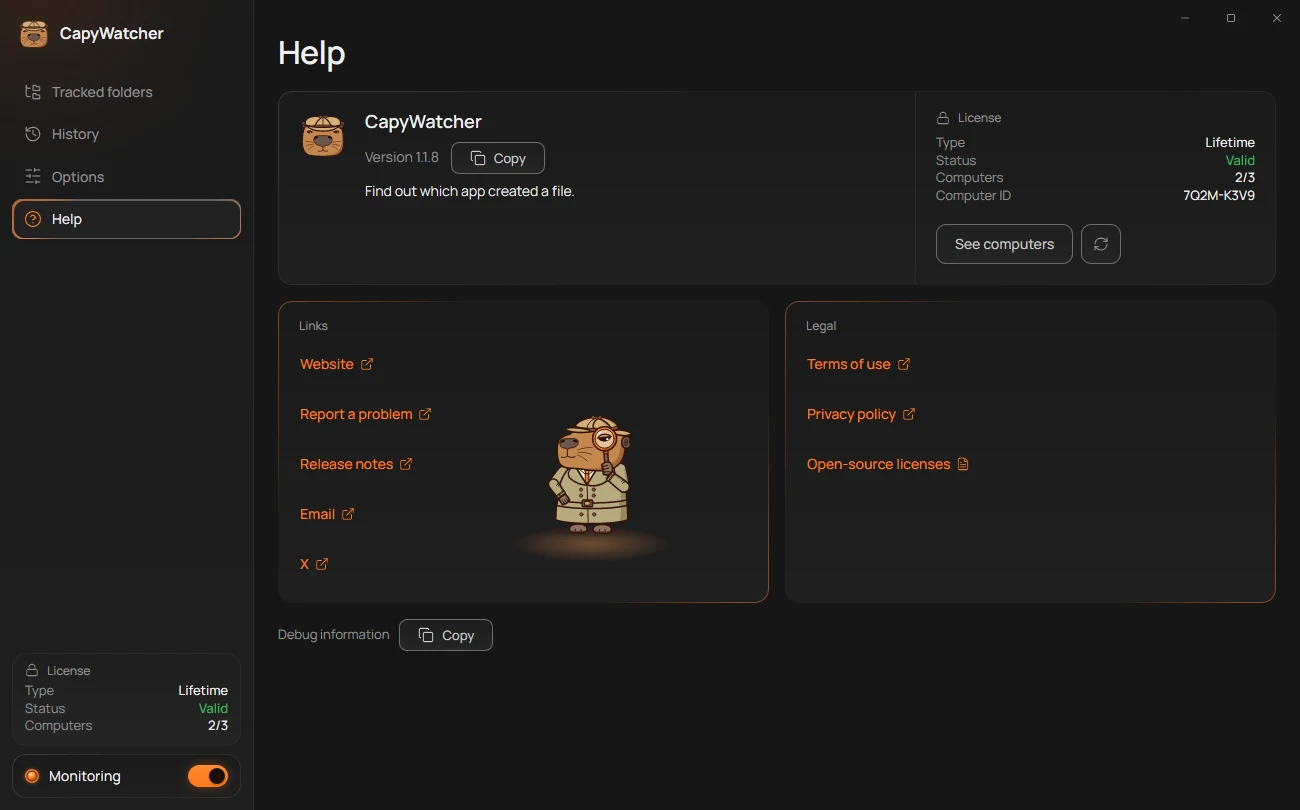
- Debug information
- Copy
Nothing shows on screen when you copy: the lines go straight to the clipboard. Screen readers say “Debug information copied.”
What it holds
The lines look like this:
CapyWatcher 1.1.8
Windows 11 Pro 24H2 (build 26100), 64-bit
Language: English (app), English (Windows)
Monitoring: on, service running
Last service error: none
Tracked folders: 3
History: 97,212 records, 212 MB, default folder, fixed drive
Size limit: 46 GB, Remove oldest records
Keep history for: 90 days
Copied: 2026-11-17 14:02
Each line is about the app or Windows: the app’s version, the Windows edition and build, the languages, whether monitoring and its service run, the last error starting the service, how many folders you track, how big History is and whether its folder is the default one on a fixed drive, the size limit and how long records are kept, and when you copied it.
What it leaves out
The debug information holds no user name, no computer name, no path, no file name and no program name, and no license key. You can read every line before you send it.
Support is at the support page, by email or by DM on X.