





In Tracked folders, the first view of the app, you choose where CapyWatcher records new files. This page also covers the counts under the folder tree, folders on the network, and drives and folders that are gone.
Choosing folders to track
CapyWatcher records new files only in the folders you choose. You choose them in Tracked folders, the first view in the app’s left column, by checking folders in a tree of your drives.
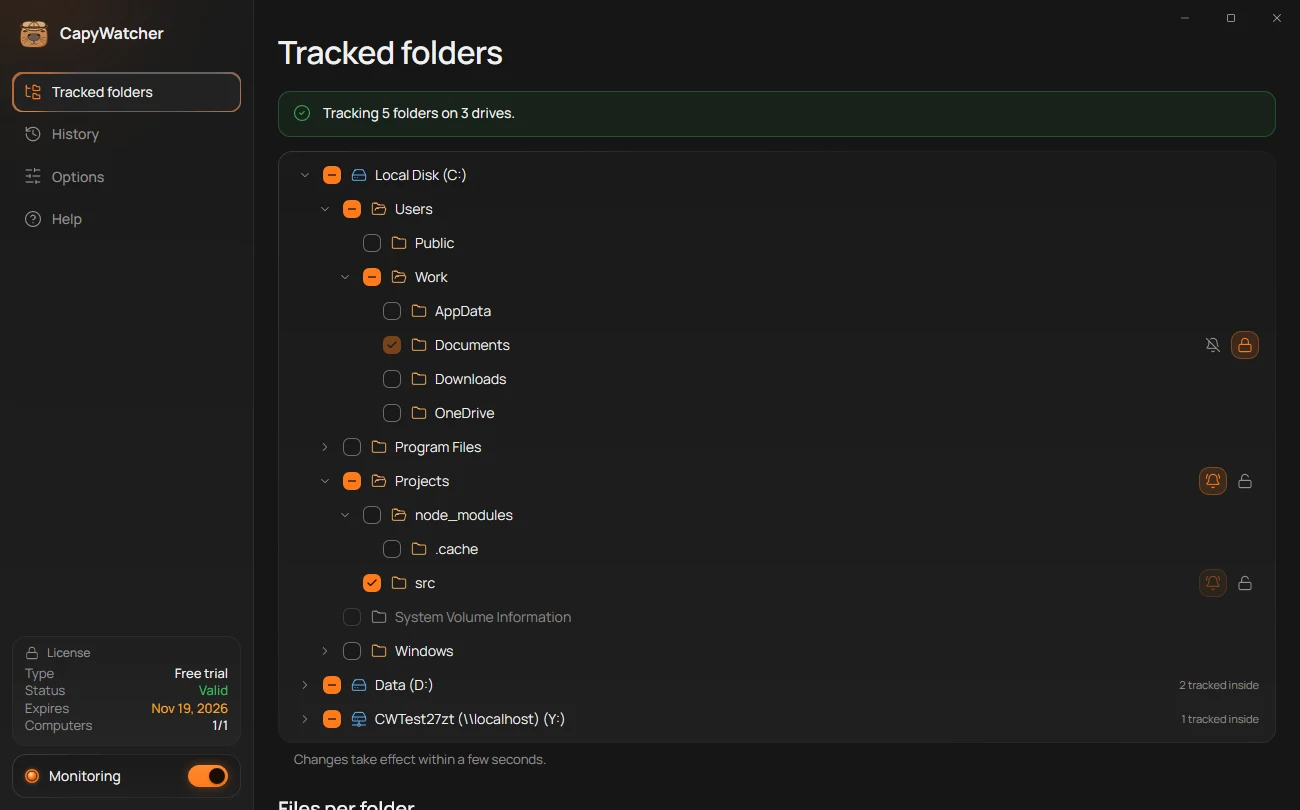
- What’s tracked now
- A drive with some folders tracked
- A tracked folder
- How many tracked folders a closed row holds
- When a change applies
Check a folder to track it
- Open CapyWatcher and select Tracked folders in the left column.
- Select the arrow next to a drive or a folder to open it. The tree shows the same folders as Explorer, hidden folders included when Explorer shows them.
- Check the box of a folder you want tracked. Everything inside it is tracked too, the folders made later included.
The banner at the top (1) counts what you chose, as in “Tracking 5 folders on 3 drives.” Under the tree, the line (5) says “Changes take effect within a few seconds.”: there’s nothing to save. From that moment, every new file in the folder is recorded. Files that were there before stay unknown to the app.
When no folder is tracked yet, the banner says so, and monitoring starts with the first folder you check.
What the boxes mean
- Checked (3): the folder and everything in it is tracked.
- Empty: the folder isn’t tracked.
- A dash (2): some folders inside are tracked and some aren’t. In the picture, Local Disk (C:) isn’t tracked as a whole, but folders in it are.
- Greyed out, like System Volume Information: Windows doesn’t let your account open this folder, so the app can’t list it. Its tooltip says “You don’t have permission to open this folder.”
On a closed row, a count such as “2 tracked inside” (4) tells you how many tracked folders it holds, without opening it.
A tracked folder also shows two small buttons at the right end of its row, a bell and a lock. They are explained on Delete alerts and Locking a folder.
Leave a folder out
To skip a folder inside a tracked one, uncheck it. Its parent then shows a dash, and new files in the left-out folder aren’t recorded. In the picture, node_modules inside Projects is left out, a common choice for a folder that build tools fill with thousands of files.
You can also check one folder inside a folder you left out. It’s tracked on its own, and the rest stays left out.
Which folders to track
Track the places where files you didn’t expect could appear:
- Downloads, where browsers and other programs save what they fetch.
- Desktop and Documents, where programs often drop files.
- A project folder, if you run AI agents or build tools in it and want to know which program wrote each file.
You can check a whole drive too. The app then records every new file on it, from your programs’ caches and temporary files to Windows’ own updates, so History fills much faster and reaches its size limit sooner. Start with the folders you care about, and add more later.
The tree follows the disk while you look at it: a folder made or deleted in Explorer appears or goes within about 2 seconds. A tracked folder that’s deleted moves to a list under the tree, as Drives and folders that aren’t there explains. Network drives can be tracked as well, with a few differences, on Network drives and shared folders.
Tip
Explorer’s right-click menu can track a folder too, without opening the app: see Tracking a folder or drive.
Stop tracking a folder
Uncheck it. New files there aren’t recorded from then on. What History already holds about the folder stays.
A locked folder can’t be unchecked, nor a folder that holds one or sits inside one. Its box is greyed out with the tooltip “Unlock the Invoices folder before you stop tracking it.”, with the locked folder’s name. Unlock it first, as Locking a folder shows.
Important
The app records new files only in tracked folders, and only from the moment a folder is checked. A file created before that, or in a folder you don’t track, has no record. History doesn’t record changes inside a file either.
Files per folder
Which tracked folder gets the most new files, and where did files disappear today? The Files per folder table answers both. It sits in Tracked folders, under the folder tree: scroll down to reach it.
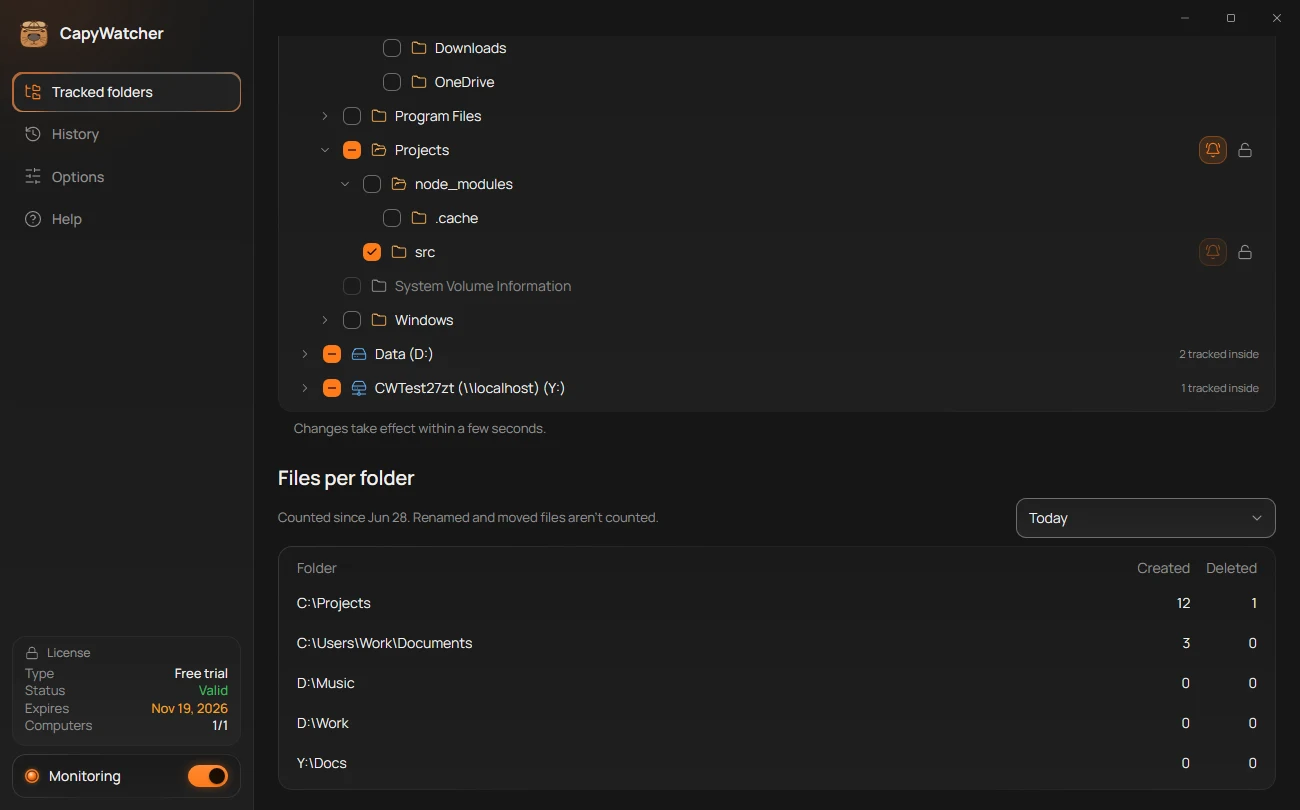
- Created
- Deleted
- The time
- What’s counted
Read the table
Each tracked folder has a row, with zeros where nothing happened, sorted by path:
- Created (1) counts the new files made in the folder and the folders inside it. A file made again under the same name counts again.
- Deleted (2) counts the files deleted there. A delete that a locked folder refused isn’t counted.
A folder that holds another tracked folder doesn’t count that one’s files: each file counts once, in the deepest tracked folder that holds it.
Choose the time
The list at the right (3) sets the time the counts cover: Today, Last 7 days, Last 30 days or Since tracking began. Days follow your computer’s clock, so Last 7 days is today and the 6 days before it.
The table opens on Since tracking began each time the app starts. The note (4) starts with the first day counted, Jun 28 in the picture.
Open a folder’s files in History
Select a row to open History searched for that folder’s path, with every file recorded in it. Reading History explains what you see there.
What isn’t counted
- Renames and moves, on either side, as the note says: “Renamed and moved files aren’t counted.”
- A folder you stopped tracking disappears from the table. Its counts are kept, and come back if you track it again.
The counts are kept apart from History, so the time History keeps its records doesn’t shorten them. Deleting all history in Options clears them too.
Important
The counts start when a folder is tracked. Files created or deleted before that, or in folders you don’t track, aren’t in them.
Network drives and shared folders
CapyWatcher works with two kinds of network folder, and it sees different things in each. A network drive is a folder on another computer or a NAS that you open from this one, often with its own drive letter, such as Y:. A shared folder is a folder on this computer that you share, so other computers can write into it.
Track a network drive
Network drives show in Tracked folders after your own drives, with a network drive icon and their address, such as CWTest27zt (\\localhost) (Y:). Check a folder on them as on any drive: see Choosing folders to track. A network folder you open in Explorer by its address, such as \\server\share, can be tracked from Explorer’s right-click menu: see Tracking a folder or drive.
From then on, the app records the new files that programs on this computer write there, with the program that wrote them, as for a local folder.
The app keeps the folder by its network address, \\server\share\folder, not by its drive letter, since a letter belongs to one Windows session. So History shows the network address, and its search finds it. Looking up a file through its drive letter still works: Who created this file? answers for Y:\report.docx as for \\server\share\report.docx.
When the other computer is off or the drive is disconnected, the drive leaves the tree. Your choices stay, and apply again when it’s back.
What the app can’t see on a network drive
The app sees only what happens on this computer. A file that another computer, or the NAS itself, writes onto the drive has no record here, so its answer is “Not in history”. On a network drive:
- Delete alerts work for deletes made by programs on this computer. The bell’s tooltip says so: “Alert me when programs on this PC delete files in the Docs folder”, with the folder’s name. See Delete alerts.
- A lock isn’t possible. The lock is a permission on this computer’s own disk. The lock is greyed out, with the tooltip “The Docs folder is on another computer, so it can’t be locked from here.”
See who wrote into a shared folder
A folder this computer shares shows a shared folder icon in the tree. You can track, lock and set alerts on it like any local folder.
When someone writes into it from another computer, there’s no program on this computer to name, since Windows’ file sharing does the writing. So the app names the other computer instead:
- Process in History, and Created by in the answer, show that computer’s network address, such as
192.168.1.20. - User shows the name its user signed in with.
- When the address isn’t known, the process reads
System.
This works with Windows’ own file sharing. A file written through another kind of sharing shows System. The same address appears in delete alerts, which then have no Stop button, since the program runs on the other computer.
Important
On a network drive, the app records only what programs on this computer do. A file written onto it from another computer or from the NAS itself has no record. Files in a folder you share are recorded with the other computer’s address, never its name.
Drives and folders that aren’t there
You unplug the USB drive you tracked, or delete a project folder you no longer need. CapyWatcher keeps your choices for them, in case the drive comes back or a build makes the folder again, and lists them under the folder tree in Tracked folders, so they never look as if they still worked.
On drives that aren’t connected
When a drive holding tracked folders is unplugged, those folders leave the tree and move to the list On drives that aren’t connected, at the bottom of Tracked folders.
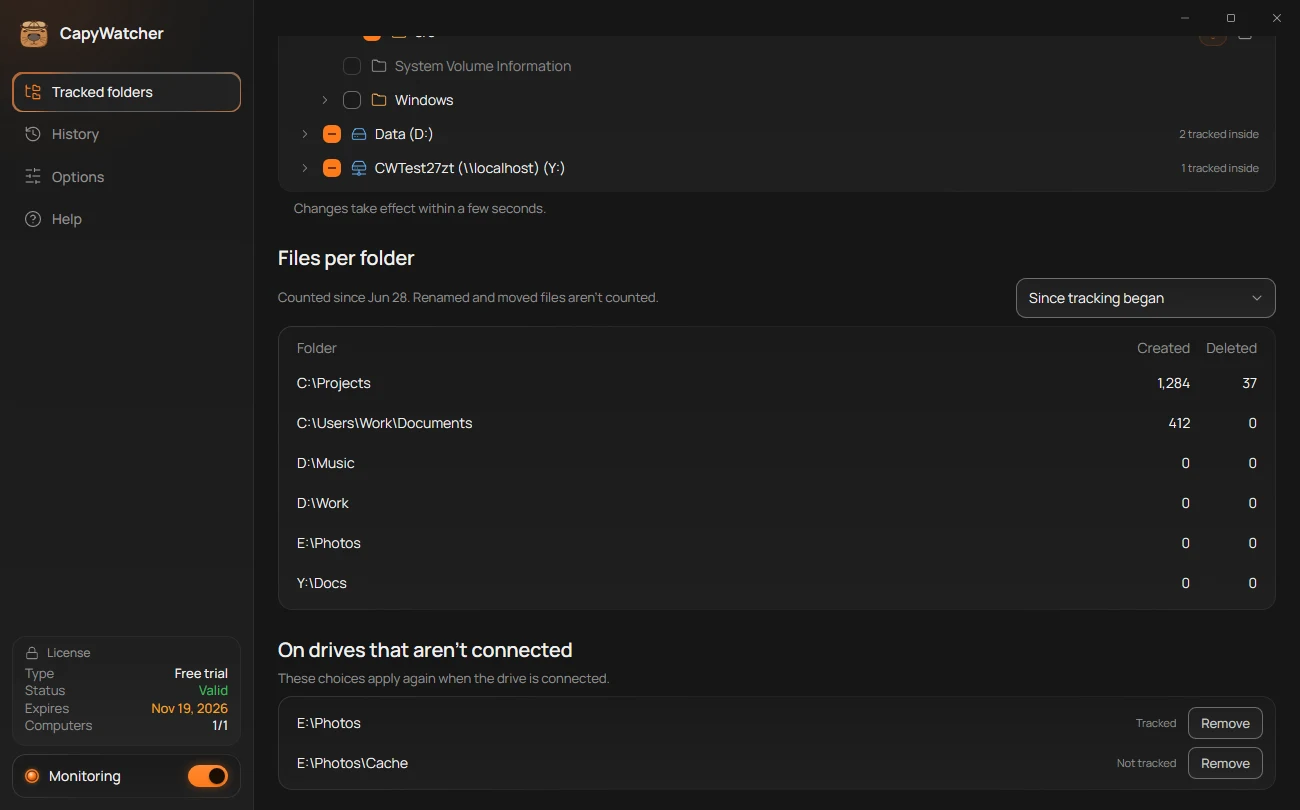
- The list
- Your choice for the folder
- Remove
Each row shows the folder and your choice for it (2): Tracked, or Not tracked for a folder you left out inside a tracked one. As the note under the heading says, “These choices apply again when the drive is connected.” Plug the drive back in, and its folders return to the tree, checked as before, and recording goes on.
Folders that no longer exist
When a tracked folder, or one you left out, is deleted, it moves within about 2 seconds to the list Folders that no longer exist.
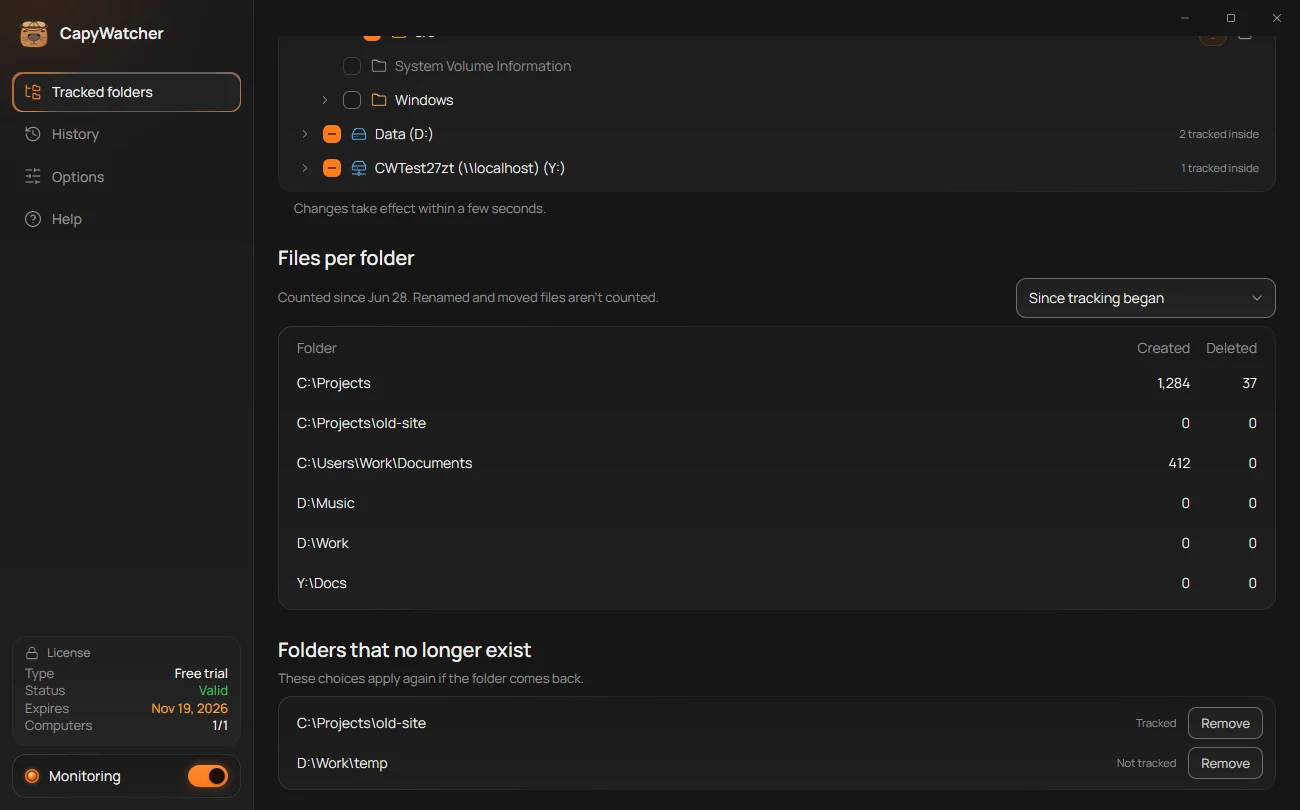
- The list
- Your choice for the folder
- Remove
“These choices apply again if the folder comes back.”: restore the folder from the Recycle Bin, or let a program make it again, and it returns to the tree, checked as before, within about 2 seconds.
Remove a choice you don’t need
Select Remove (3) next to the folder. Its choice is gone for good. Removing a tracked folder also removes the folders you left out inside it, and removing a locked folder removes its lock.
A network drive that can’t be reached isn’t listed in either place: it leaves the tree, and comes back on its own when it’s reachable again. See Network drives and shared folders.
Important
Nothing is recorded in a folder while it’s missing: the app records new files only in the tracked folders that are there. What History already holds about the folder stays.