





Right-click a new file in a tracked folder, and CapyWatcher tells you which program created it. The answer comes from the app’s history, so it works even when that program closed long ago.
Open the answer from Explorer
- In Explorer, right-click the file. You can also right-click a folder, or several selected files and folders at once.
- On Windows 11, select Show more options at the bottom of the menu. Windows 10 shows the full menu at once.
- Select CapyWatcher: who created this file? (1). On a folder it reads “CapyWatcher: who created this folder?”, and on several items “CapyWatcher: who created these?”.
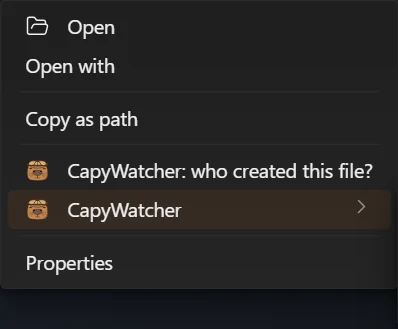
- CapyWatcher: who created this file?
- The CapyWatcher submenu
The answer opens in a small window next to the pointer. Under the entry, the CapyWatcher submenu (2) holds the folder’s actions, explained on What’s using this file?, Tracking a folder or drive and Locks and delete alerts from the menu.
Read the answer
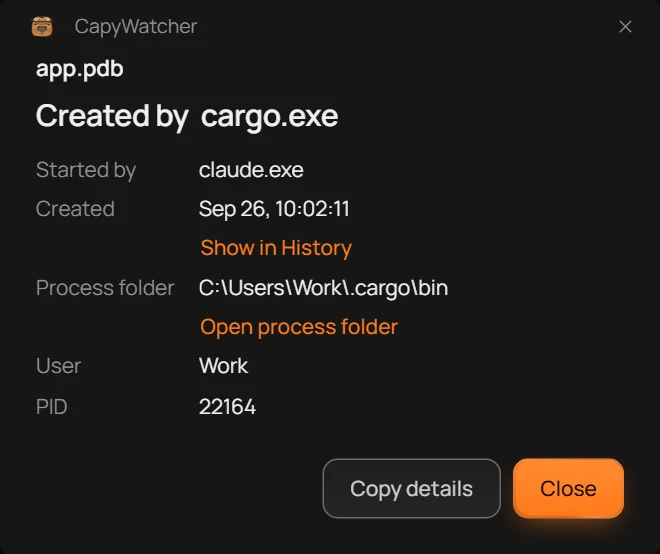
- Created by
- Started by
- Created
- Process folder
- User
- PID
- Open process folder
- Show in History
- Copy details
- Close
The window’s heading is the file’s name. Under it, the answer:
- Created by (1) names the process that wrote the file. A process is a program while it runs, named after its program file, such as
cargo.exeormsedge.exe. - Started by (2) names the program that started that process. In the picture,
claude.exe, an AI agent, rancargo.exe, a build tool, which wroteapp.pdb. - Created (3) is the date and time the file appeared, in your computer’s time.
- Process folder (4) is the folder that holds the program file, such as
C:\Users\Work\.cargo\bin. It tells you which program a name belongs to. - User (5) is the Windows account the process ran under, and PID (6) is the number Windows gave the process while it ran.
Why “Started by” matters
The program that writes a file is often a helper, started by the program you know. An editor starts node.exe, a browser starts copies of itself, an AI agent starts a terminal that runs a build. Started by skips the command windows in between (cmd.exe, powershell.exe, bash.exe and the like) and the process’s own copies, and names the first program past them. When no such program was found, the line reads “Unknown”.
The whole chain, up to four programs, nearest first, goes into the copied details as Parent processes.
Open the program’s folder
Select Open process folder (7) to open the program’s folder in Explorer. A program from C:\Program Files is usually an app you installed. One that runs from a temporary folder or from AppData deserves a closer look. When the button is greyed out, its tooltip says why: “The process ended before its folder could be read.” or “The process folder no longer exists.”
See it in History
Select Show in History (8) to open the app on History, searched for this file, with the files around it. When the program is hidden from History, the link’s tooltip says so, and Options shows it again.
Copy the answer
Select Copy details (9) to copy the answer as text, with full paths and the date with its time zone, ready to paste into a note or an email:
File: C:\Projects\app\target\release\app.pdb
Created by: cargo.exe
Started by: claude.exe
Parent processes: bash.exe, claude.exe, WindowsTerminal.exe, explorer.exe
Process: C:\Users\Work\.cargo\bin\cargo.exe
PID: 22164
User: Work
Created: Sep 26, 2026, 10:02:11 (UTC+02:00)
Select Close (10), or press Esc, to close the window.
When there’s no program to show
Not every file has a record. The answer then says why, in one of these words.
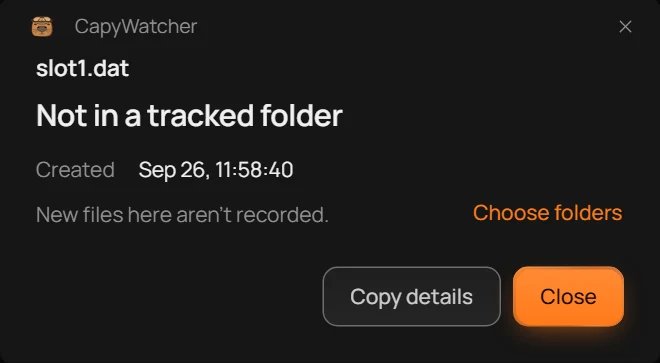
- The answer
- Why
- Choose folders
- “Not in a tracked folder” (1): the file is outside every folder you track, so the app records nothing there. The line under it (2) says “New files here aren’t recorded.” Select Choose folders (3) to open Tracked folders and add the folder, for the next files.
- “Created before monitoring started”: the file appeared before the app started recording this folder, so there’s nothing to show.
- “Not in history”: the folder is tracked, but the file has no record. Either “Monitoring wasn’t recording this folder when the file was created.”, because monitoring was off, or “Its record was removed to keep history under its size limit.”
After the free trial, without a license, the answer reads “Locked”: the app still records every new file, and the answer shows again once you enter a license key.
Look up several files at once
Select several files and folders in Explorer, right-click them and select CapyWatcher: who created these?. The window lists them all, each with its answer.
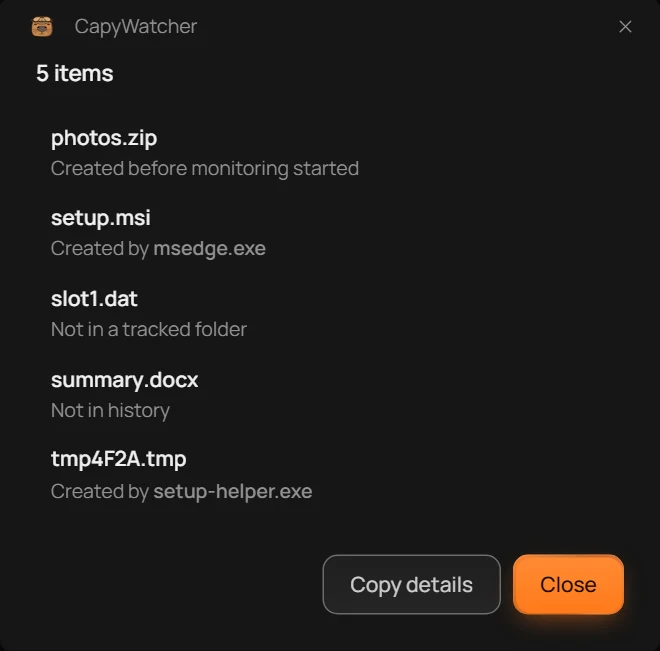
- The count
- One file’s answer
- Copy details
The heading counts the items (1), and each row (2) gives one file’s answer. Select a row to see that file’s full answer, and the back arrow, Back to all items, to return to the list. Copy details (3) copies every item’s answer.
A file from another computer
When this computer shares a folder and someone writes into it from another computer, the file isn’t made by a program here. Created by then shows that computer’s network address, such as 192.168.1.20, and User shows the name its user signed in with. When the address isn’t known, Created by reads System.
Other ways to open the same answer
The same window opens from History’s Look up a file button, and when you drag files from Explorer onto the app’s window. Both are useful when Explorer’s menu is out of reach, or for files you found in History.
Important
The app knows only the new files created in your tracked folders while monitoring was on, from the day you installed it. It doesn’t record changes inside a file, so an older file that a program edited still shows the program that created it.