





Most of Options is about how the app runs around you: whether it records, what it tells you, how it looks, when it starts and how new versions reach you.
Status
Status sits at the top of Options, the third view in the main window’s left column. It answers one question at a glance: is the app recording new files right now, and has it missed any?
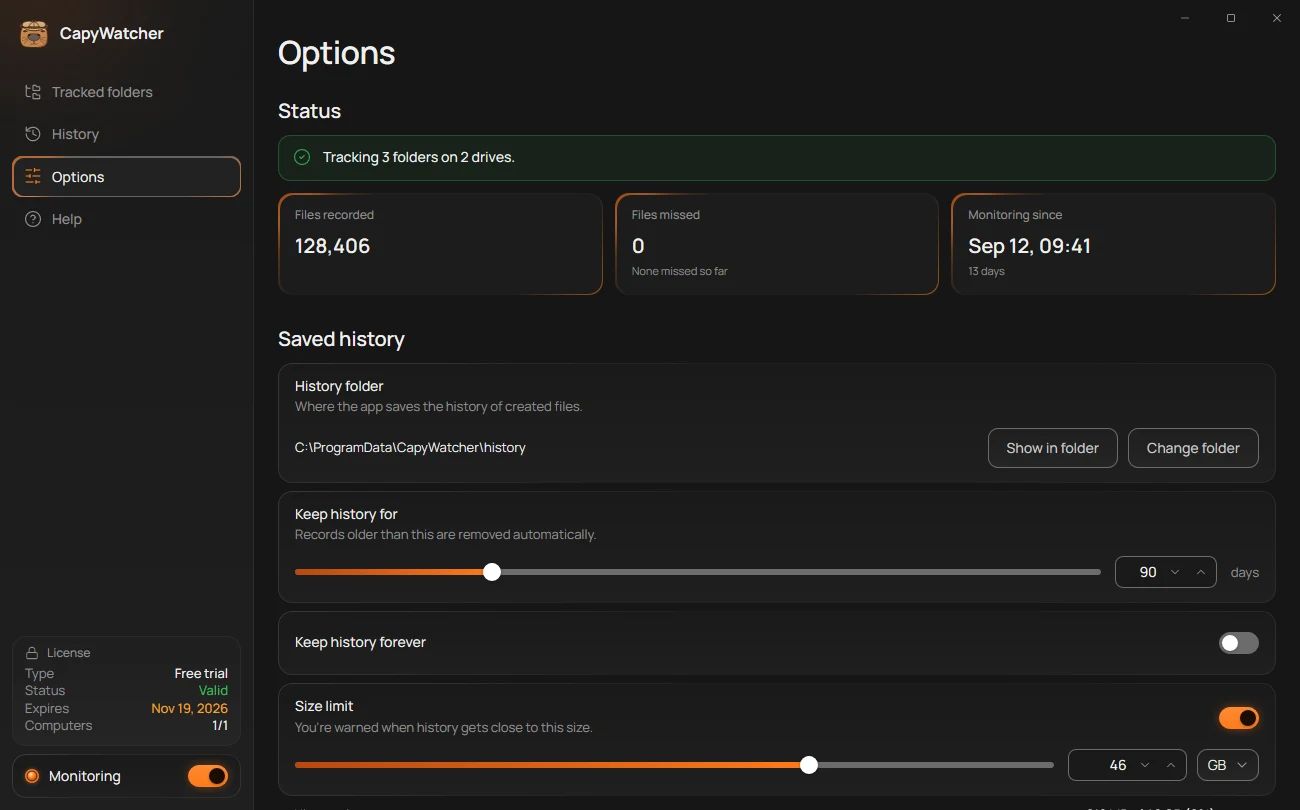
- The status line
- Files recorded
- Files missed
- Monitoring since
The status line
The line (1) says what monitoring does now. Monitoring is the app’s recording: its service, which runs in the background even when the window is closed, writes down each new file a program creates in your tracked folders.
- While monitoring is on, the line names what it covers, such as “Tracking 3 folders on 2 drives.”, or “Tracking every folder on every drive.” when every drive is tracked.
- While it’s off, the line says “Monitoring is off.” with a button to turn it on.
- When it stopped by itself, the line says “Monitoring stopped.” with the time it stopped, such as “Stopped at 14:02 on Nov 17, 2026.”, and a Start button. Select Start to record again from that moment. If it fails, the line says “Couldn’t start monitoring. Restart your computer and try again.”
The Monitoring switch at the foot of the left column does the same as the button: see Turning monitoring off and on.
Files recorded
Files recorded (2) counts the records History holds now, one per new file. It falls when old records are removed, by age or by the size limit you set in Saved history, and when you delete the history.
Files missed
Files missed (3) counts the files the app couldn’t record since monitoring last started, because programs created them faster than it could keep up. While it’s 0, the tile says “None missed so far”. Above 0, it says “Some files appeared too fast to record.” A missed file has no record, so its lookup says “Not in history”.
A short burst, such as unpacking a very large archive into a tracked folder, can cause it. If the count keeps rising, look for a tracked folder that gets a great many files, such as a build output or a cache folder, and stop tracking it in Choosing folders to track if you don’t need its records.
Monitoring since
Monitoring since (4) shows when the service started its current run of recording, and under it, for how many days. It restarts when monitoring starts again after being off or stopped, and after the computer restarts, so it also tells you when the last gap ended.
Important
Files created while monitoring was off or stopped are never recorded, and missed files aren’t either. The app records new files only, in the folders you track, from the moment monitoring is on.
Notifications and popups
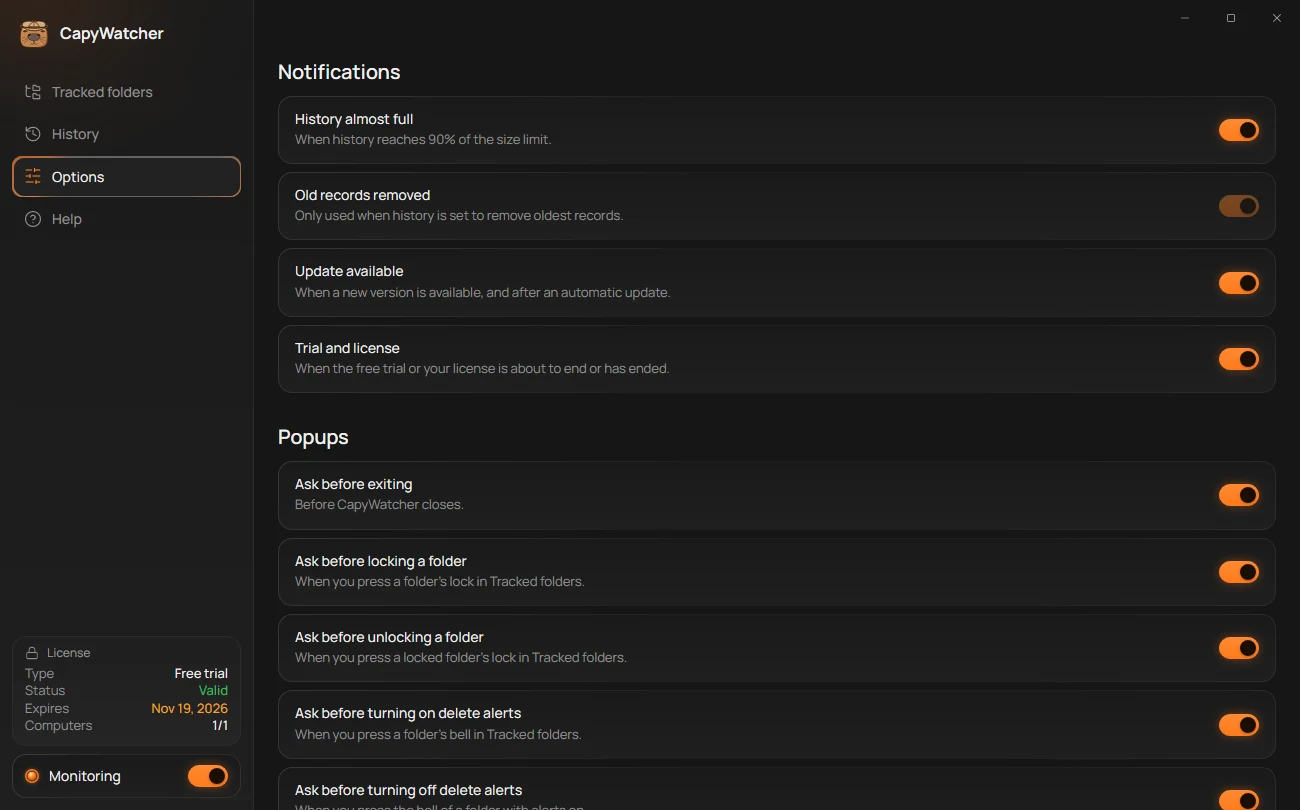
Two groups of switches in Options decide what the app shows you without being asked. Notifications are the messages Windows shows at the bottom right of the screen. Popups are the questions the app asks before an action, such as “Exit CapyWatcher?”.
- A notification switch
- A popup switch
Notifications
Each switch (1) turns one kind of notification on or off. All four are on at first.
| Switch | The notification it controls |
|---|---|
| History almost full | “History is almost full”, when History reaches 90% of its size limit. It works only while the size limit is on. |
| Old records removed | “Old records removed”, when the app removed old records to stay under the size limit. It works only while History is set to Remove oldest records. |
| Update available | “Update available” when a new version is out and Automatic updates is off, and “CapyWatcher is updated to version 1.2.0.” after an update. |
| Trial and license | The notices before and after the free trial ends, and those of the yearly plan. |
A switch that can’t work yet is greyed out, with a line that says why, such as “Turn on the size limit to use this.” Other notifications explains each notification.
Delete notifications have no switch here: you choose them per folder, with delete alerts in Tracked folders. The notifications for a stopped monitoring have none either, since they tell you nothing is recorded.
If Windows blocks CapyWatcher’s notifications, this section says “Windows is blocking notifications from CapyWatcher.” with an Open Windows settings button. No notification shows until you allow them there, whatever these switches say.
Popups
Each switch (2) turns one question on or off. On means the app asks first.
| Switch | The question it controls |
|---|---|
| Ask before exiting | “Exit CapyWatcher?”, before the app closes. See The tray icon. |
| Ask before locking a folder | The question when you press a folder’s lock in Tracked folders. See Locking a folder. |
| Ask before unlocking a folder | The question when you press a locked folder’s lock. |
| Ask before turning on delete alerts | The question when you press a folder’s bell. See Delete alerts. |
| Ask before turning off delete alerts | The question when you press the bell of a folder with alerts on. |
With a switch off, the action happens at once when you press its button.
Bring back a question you hid
Each of these questions has a Don’t show this again box. Checking it and confirming the action turns that question’s switch off here. Cancel ignores the box.
To have the question again, open Options, scroll to Popups and turn its switch on.
Tip
Some questions always ask and have no switch: deleting all history, replacing your settings from a file, moving History, removing old records, removing a computer from your license and uninstalling. They’re rare, or what they do can’t be undone.
Appearance and language
Appearance in Options holds two settings: the colors of the app and the language of its words. Both apply at once, with no restart.
Light or dark
Theme has three choices:
- System follows the light or dark mode you chose in Windows, and changes when Windows does. It’s the choice at first.
- Light keeps the app light, whatever Windows uses.
- Dark keeps it dark.
Windows’ own setting for System is in Settings, under Personalization, then Colors, as “Choose your mode”.
High contrast
When a contrast theme is on in Windows, Windows chooses the colors of every app, CapyWatcher included. The Theme choices are greyed out then, with the line “High contrast is on in Windows, so Windows chooses the colors.” Turn the contrast theme off in Windows to use them again.
The app’s language
Language lists System and nine languages, each in its own name: English, Français, Italiano, Deutsch, Español, Polski, Português (Brasil), 日本語 and 繁體中文.
- System uses your Windows display language if the app has it. If it doesn’t, the app uses English and says “Your Windows language isn’t available yet, so English is used.”
- A language you pick applies to every window of the app, its tray menu, its notifications and the CapyWatcher entries in File Explorer’s right-click menu.
The language you pick here doesn’t change Windows, and it doesn’t change the website, which has its own language menu.
Tip
The words in this guide are the app’s English words. When the app is in another language, the same buttons are in the same places with that language’s words.
Startup and closing
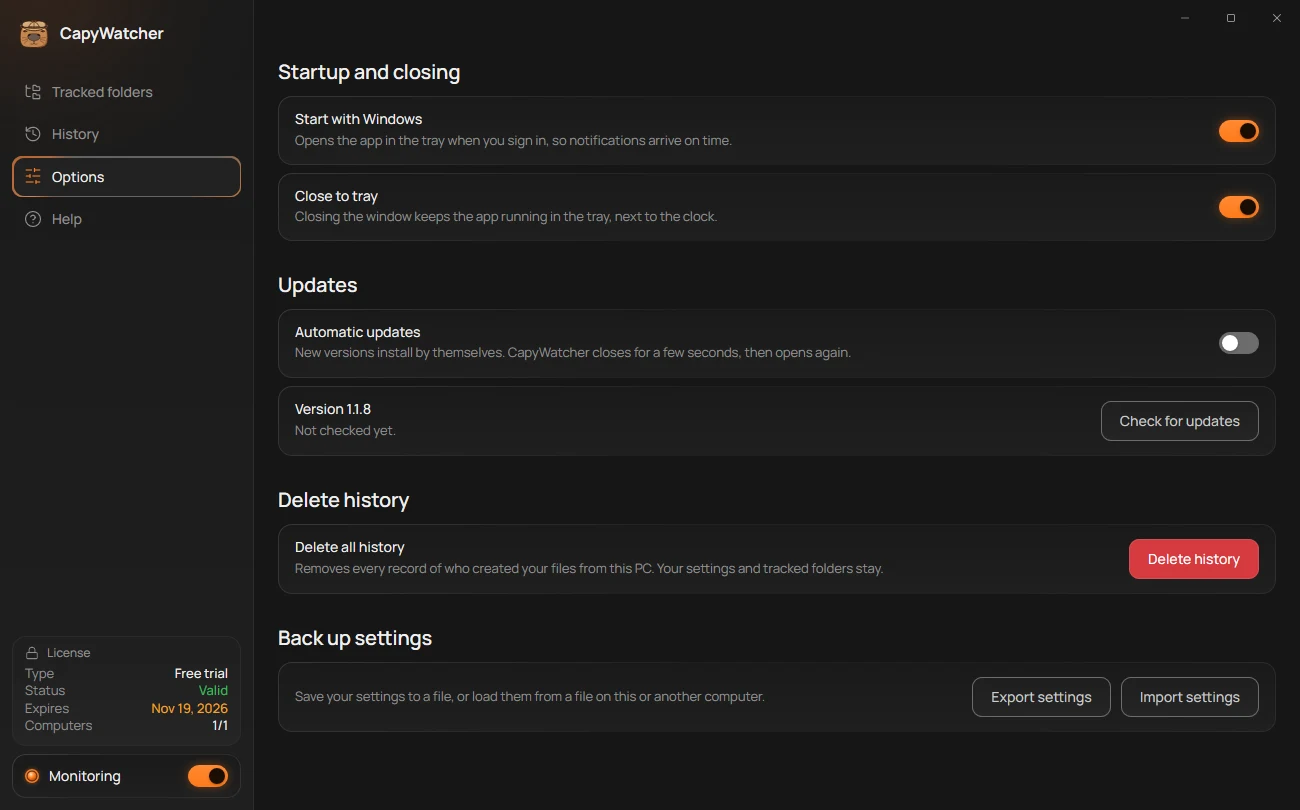
Two switches in Options, under Startup and closing, decide when the app’s window side runs: the part with the window, the tray icon and the notifications. The service, the part that records new files, doesn’t depend on them: it starts with Windows and records while monitoring is on, whether the app is open or not.
- Start with Windows
- Close to tray
Start with Windows
With Start with Windows (1) on, the app opens in the tray each time you sign in to Windows, without showing its window, “so notifications arrive on time”. Delete alerts, lock notices and update notices need the app running to show. The switch is on at first.
Windows can also turn the app’s startup off, in Task Manager’s Startup apps page or in Settings, under Apps, then Startup. The switch then shows off and greyed out, with the line “Turned off in Task Manager. Turn it on under Startup apps there.” Turn CapyWatcher on in that list to use the switch again.
Close to tray
With Close to tray (2) on, closing the window with its X keeps the app running in the tray, the row of small icons next to the clock. Open it again from its icon there: see The tray icon. The first time, a notification says “CapyWatcher is still running”. The switch is on at first.
With Close to tray off, closing the window ends the app, as Exit in the tray’s menu does, without a question.
What keeps recording
Neither switch changes what the app records:
- With the app closed, the service goes on recording new files in your tracked folders. Notifications stop until the app opens again.
- To stop recording, turn off monitoring with the switch at the foot of the left column: see Turning monitoring off and on.
Tip
If you turn off Start with Windows, open CapyWatcher from the Start menu after you sign in when you want its notifications.
Updates
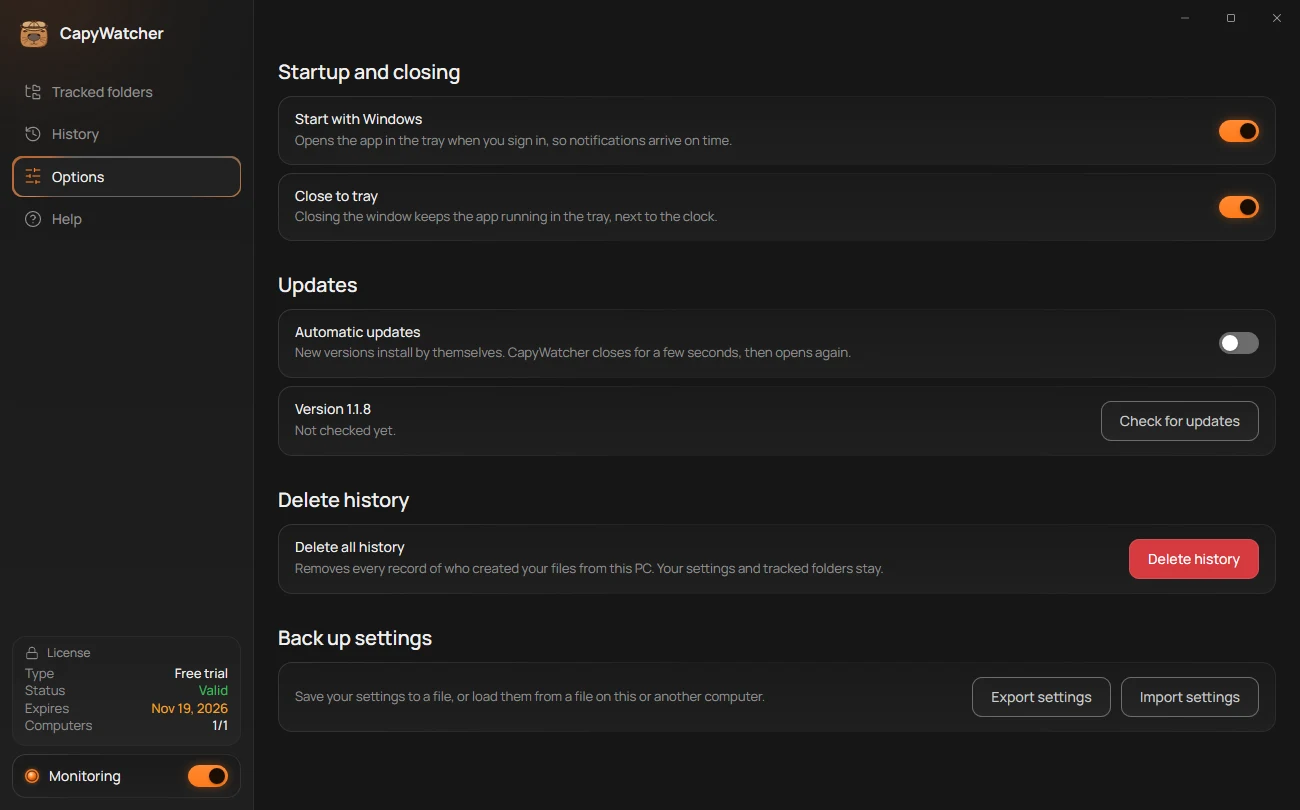
CapyWatcher looks for a new version once a day, and you decide whether it installs by itself or waits for you. Everything about it is under Updates in Options.
- Automatic updates
- Your version and the last check
- Check for updates
Update now
- Open Options and scroll to Updates.
- Select Check for updates (3). The line under your version (2) says “Checking for updates…”.
- If you have the latest, it says “You’re up to date. Last checked 14:02.” with the time. If not, it says “Version 1.2.0 is available.” and the button becomes Update.
- Select Update. The line shows the download, then “Installing version 1.2.0. CapyWatcher closes for a few seconds, then opens again.”
- The app opens again by itself, and the line says “Updated to version 1.2.0.”
Windows asks nothing during an update: the app’s service downloads and installs it. Your settings, tracked folders and History stay as they are.
Automatic updates
With Automatic updates (1) on, “New versions install by themselves. CapyWatcher closes for a few seconds, then opens again.” A notification then says “CapyWatcher is updated to version 1.2.0.” It’s off at first.
With it off, the daily check shows the notification “Update available” once per version, with an Update button. Nothing installs until you select Update, there or in Options. The switch Update available in Notifications and popups turns those notifications off.
When an update doesn’t work
| The line says | What to do |
|---|---|
| “Couldn’t reach the update server. Check the connection and try again.” | Check that the computer is online, then select Check for updates again. |
| “The update server didn’t answer as expected. Try again later.” | Wait a while and try again. |
| “Updates can be checked once the license check has run. Try again in a minute.” | The app checks its license first, right after it starts. Wait a minute. |
| “The CapyWatcher service isn’t running, so updates can’t be checked.” | Monitoring’s service is stopped. Start it in Options, under Status: see Status. |
| “The download didn’t match its checksum, so it wasn’t installed. Try again.” | The file arrived damaged. Try again. |
| “The download was larger than expected, so it wasn’t installed.” | Try again later. |
| “The update to version 1.2.0 didn’t finish. The details are in setup.log.” | Your version stays installed. Select Open log to see why, and send it to support if you can’t tell. |
The log is C:\ProgramData\CapyWatcher\setup.log, the record of every install, update and repair.
You can also update by hand at any time: download the latest installer from the download page and run it. Setup sees the version you have and offers Update.
What’s new in a version
Help has a Release notes link that opens the website’s release notes, one per version.
What the update check sends
The check goes online to CapyWatcher’s server, once a day and when you select Check for updates. It sends the version you have and the ID the license check uses for this computer, nothing about your files, folders or programs. The new version’s installer comes from the same server, and the app installs it only if it matches the checksum the server gave.
Important
The update check and the license check are the only times the app goes online by itself. History never leaves your computer through them.