





Two parts of Options are about your data: the history the app keeps, and the settings you can save to a file and load again on this or another computer.
Saved history
History is the app’s record of every new file it saw in your tracked folders, with the program that created it. It lives in one file on your computer, and Saved history in Options decides how long its records stay, how large it may grow and where it’s kept.
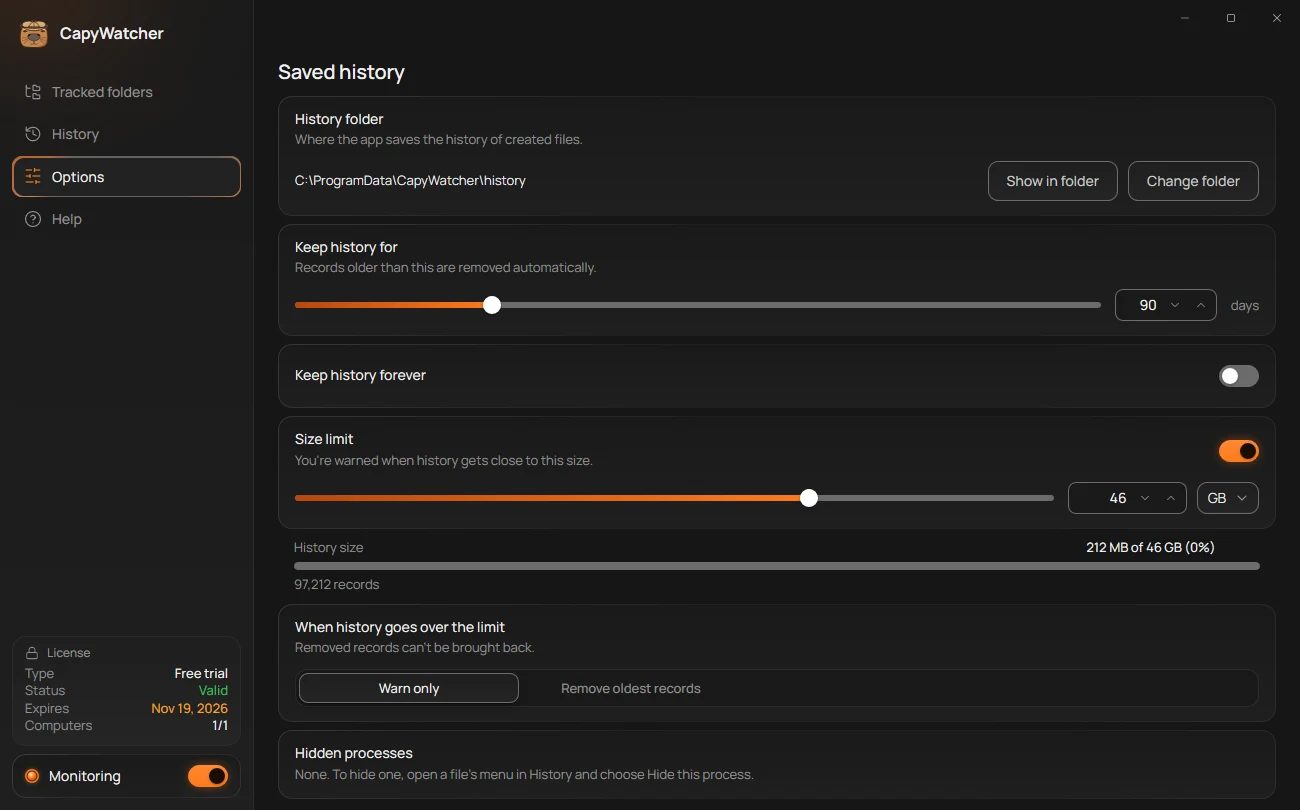
- History folder
- Keep history for
- Keep history forever
- Size limit and History size
- When history goes over the limit
How long records are kept
Keep history for (2) removes records older than the number of days you set, from 1 to 365. It starts at 90 days. Drag the slider, or type the number in the box beside it.
Turn on Keep history forever (3) to keep every record whatever its age. “Records are never removed because of their age.” The size limit below can still remove old records if you choose so.
How large it may grow
Size limit (4) sets how much space History may take. At first it’s 5% of the drive that holds it, rounded down to whole gigabytes. Choose MB or GB in the list beside the box. Under it, History size shows the space used now, the share of the limit and the number of records, such as “212 MB of 46 GB (0%)”.
When History reaches 90% of the limit, a notification says “History is almost full”, unless you turned it off: see Other notifications. With the size limit off, there’s no warning and no removal by size.
When History goes over the limit
When history goes over the limit (5) has two choices:
- Warn only: the app only tells you. It keeps every record, and History grows past the limit.
- Remove oldest records: the app removes the oldest records to stay under the limit, and a notification says how many, unless you turned it off.
“Removed records can’t be brought back.” If you lower the limit below the size History has now while Remove oldest records is chosen, the app first asks “Remove the oldest records?” and says about how many go. Select Remove records to go on, or Cancel to keep them.
Removing a record never touches the file it’s about: only the line in History goes.
Where History is kept
History folder (1) shows where the file is: C:\ProgramData\CapyWatcher\history unless you moved it. Select Show in folder to open it in File Explorer.
To keep History on another drive, select Change folder and pick a folder. The app asks “Move history to this folder?” and says how much moves. Select Move history. Monitoring pauses until the move is done, and the card shows the progress, then “History moved to D:\History.” with your folder. If the move fails, History stays where it was, monitoring starts again, and the card says so.
Some folders can’t hold History, and the card says why:
- a network drive: “History can’t be kept on a network drive.”
- a USB stick or another removable drive: “History can’t be kept on a removable drive.”
- a folder OneDrive syncs: “Choose a folder that OneDrive doesn’t sync.”
- a locked folder: “History can’t be saved in a locked folder.”
- a folder you can’t write to, or a drive without enough free space.
To move it back, select Change folder again and pick C:\ProgramData\CapyWatcher\history.
Who can read it
The history file is encrypted with a key kept on this computer. A program that opens the file directly sees no paths or names, and a copy of the file taken to another computer can’t be read there, even by CapyWatcher. That’s also why History can’t be carried to a new computer: Backing up settings moves your settings, not your history.
Important
Records removed by age or by the size limit can’t be brought back. History records new files only, in the folders you track, from the day the app was installed: it doesn’t record changes inside a file.
Deleting history
Deleting history removes every record the app has of who created your files, in one go. Your files themselves stay exactly where they are: only the app’s records go.
Delete all history
- Open Options and scroll to Delete history. Its card says “Removes every record of who created your files from this PC. Your settings and tracked folders stay.”
- Select Delete history on the card. The app asks:
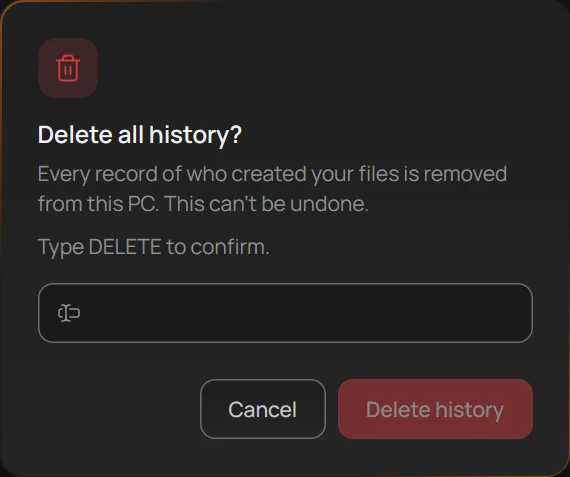
- The field
- Delete history
In the question, finish with these two steps:
- Type
DELETEin the field (1). Delete history (2) stays greyed out until the word is there. - Select Delete history. The card says “Deleting the history…”, then “History deleted.”
From then on, History lists only files created after that moment, in the folders you track.
What goes and what stays
- Goes: every record in History, the removed files’ records included. Their lookups then say “Not in history”. Options’ Files recorded starts again from 0.
- Stays: your files, your tracked folders, delete alerts and locks, the hidden processes and every option. Your license stays too.
To remove only old records, set how long History keeps them, or a size limit, in Saved history.
When it doesn’t work
- “The CapyWatcher service isn’t running, so the history can’t be deleted now.” Start monitoring in Options, under Status, and try again.
- “Wait until the history has moved, then try again.” A move of the history folder is under way.
- “Couldn’t delete the history. Try again.”
Important
Deleting history can’t be undone. Deleted records can’t be brought back, and files created before the deletion never get a record again.
Backing up settings
Setting up a new computer the way your old one was takes two clicks: save your settings to a file on one, load the file on the other. Back up settings is the last part of Options.
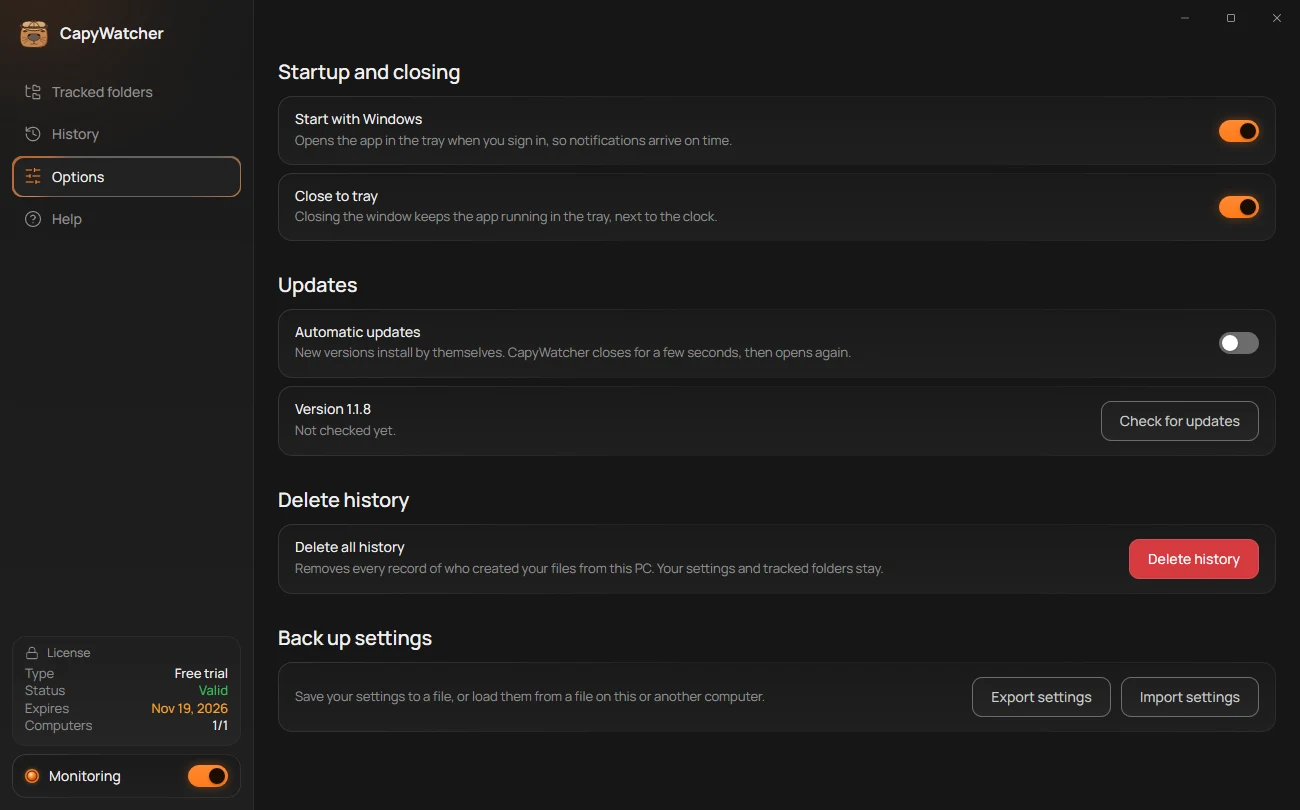
- Export settings
- Import settings
What the file holds
The file holds your tracked folders, with the choices you made on them (the folders left out, delete alerts and locks), the hidden processes, and every option in Options: how long History is kept, the size limit, notifications and popups, theme and language, startup and updates.
It doesn’t hold History, the record of who created your files, and it doesn’t hold your license key.
Save your settings
- Open Options and scroll to Back up settings.
- Select Export settings (1).
- Windows’ Save window opens, with the name
CapyWatcher settings.toml. Choose a folder, such as a USB stick or a folder you back up, and select Save. - The card says “Settings saved to CapyWatcher settings.toml.” with a Show in folder link.
Load settings from a file
- Open Options and scroll to Back up settings.
- Select Import settings (2) and pick the file in Windows’ Open window.
- The app asks “Replace your current settings with CapyWatcher settings.toml?”: “Your tracked folders and all options are replaced with the ones in this file.”
- Select Replace settings. The card says “Settings loaded from CapyWatcher settings.toml.”
The app then tracks the folders the file names, from that moment. A folder on a drive this computer doesn’t have waits under the drives that aren’t connected: see Drives and folders that aren’t there.
When it doesn’t work
- “This file is from a newer version of CapyWatcher. Update the app, then try again.” See Updates.
- “This file doesn’t contain CapyWatcher settings.” Pick the file Export settings made.
- “Couldn’t open the file. Try again.” or “Couldn’t save the file. Choose a different folder and try again.”
Moving to a new computer
- On the old computer, export your settings, as above.
- On the new one, install CapyWatcher and import the file.
- To use your license there, remove the old computer from it first, then enter your key on the new one: see Your license and its computers.
Important
History stays on the computer that recorded it. Its file is encrypted with a key kept on that computer, so a copy can’t be read on another one. The new computer starts its own History from the day you install the app there.