





Explorer’s right-click menu does more than name the program that created a file. It shows which programs hold a file open, and it tracks folders, locks them and turns on their delete alerts without opening the app.
What’s using this file?
When Windows refuses to delete, rename or move a file because “the file is open in another program”, CapyWatcher shows which programs hold it right now and lets you close them.
It works in every folder, tracked or not, since it asks Windows about the programs running now and doesn’t need the app’s history. After the free trial, without a license, the answer reads “Locked” until you enter a license key.
Open it from Explorer
- In Explorer, right-click the file or folder. On Windows 11, select Show more options at the bottom of the menu.
- Point at CapyWatcher to open its submenu.
- Select What’s using this file? (1). On a folder it reads “What’s using this folder?”.
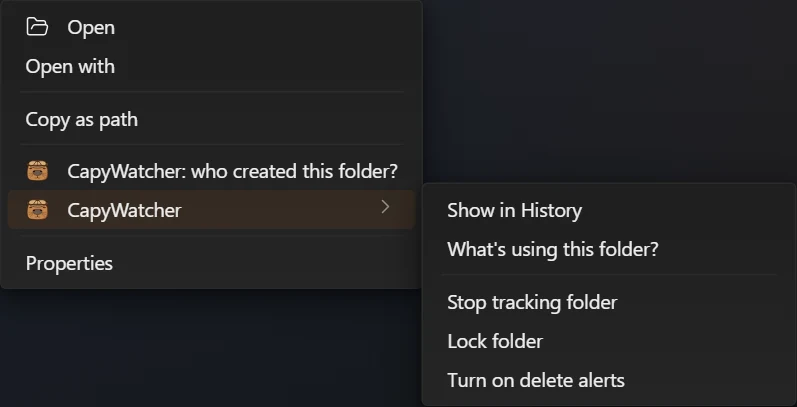
- What’s using this folder?
Read the list
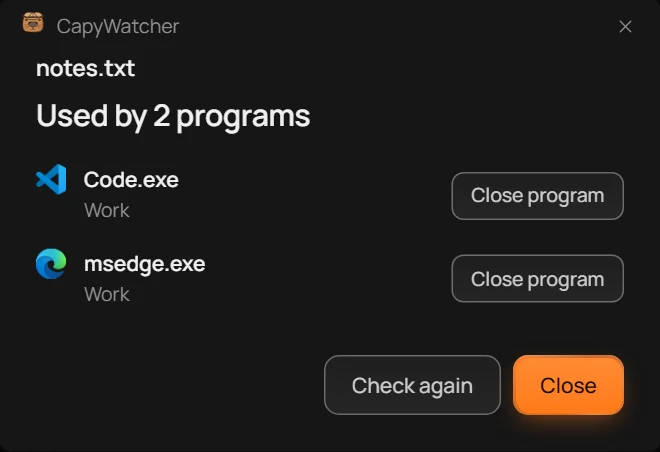
- The answer
- A program
- Close program
- Check again
The window’s heading is the file’s name, and the answer under it (1) counts the programs, as in “Used by 2 programs”. Each row (2) shows a program’s icon and the name of its program file, such as Code.exe, and under it who runs it:
- your account’s name, such as Work;
- your name with “as administrator” when the program runs with an administrator’s rights, meaning it may change Windows for every account;
- another account’s name when someone else signed in on this computer runs it;
- “Windows service” for a program Windows runs in the background with no window.
For a folder, the row also counts the folder’s files that program holds. On a folder of more than 5,000 files, the app checks the first 5,000 and says “Only the first 5,000 files were checked.”
When nothing holds the file, the answer reads “No program is using this file”. Select Check again (4) to look again, for example after you closed a program yourself.
Close the program that holds it
- Select Close program (3) on the program’s row.
- The app asks first, with “If it has unsaved work, it asks you to save it first.” Select Close program.
- The app asks the program to close the way its own close button would, so the program can ask you to save. The button reads “Closing…” while it waits.
- When the program closes, its row goes and the count follows. Try your delete, rename or move again.
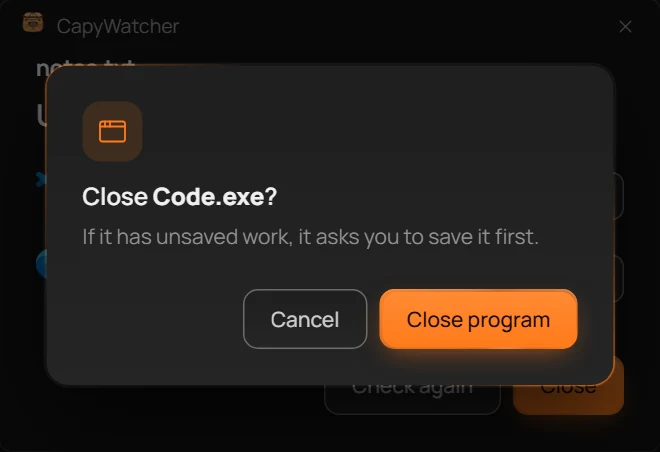
- The question
The question (1) names the program, so you can check it’s the one you mean before it closes.
For a program that runs as administrator, Windows asks for an administrator’s permission before the app can ask it to close.
When it doesn’t close
If the program is still running a few seconds later, its row says “Code.exe is still open. It may be asking you to save your work.” Look for its window, save what you need, and close it there. If it doesn’t answer at all, select Stop Code.exe in the row. The app asks “Stop Code.exe?” and warns that unsaved work in it is lost. Stopping ends the program at once.
A program with no window of its own, such as a command line tool, can’t be asked to close, so its Close program goes straight to that Stop question. The same goes for a program another account runs.
Programs the app won’t close
Some rows keep their Close program button greyed out, and its tooltip says why:
- Explorer: “Closing Explorer closes the taskbar too. Close the folder window that shows this file instead.” Often a folder window, or its preview pane, is what holds the file.
- A Windows service: “This is a Windows service. CapyWatcher doesn’t stop services.”
- A program Windows needs: “Windows needs this program to keep running.”
When a Windows service holds the file, restarting the computer is the way to free it.
Important
The app sees only programs on this computer. A program on another computer that holds a file in a shared folder isn’t listed, and a folder that’s only open as a command window’s current folder isn’t found either.
Tracking a folder or drive
You don’t need to open CapyWatcher to track a folder. Explorer’s right-click menu has a CapyWatcher submenu that tracks a folder or a drive, or stops tracking it, in two clicks.
Track a folder
- In Explorer, right-click the folder, or the empty space inside it once it’s open. On Windows 11, select Show more options at the bottom of the menu.
- Point at CapyWatcher to open its submenu.
- Select Track folder.
The app opens on Tracked folders with the folder’s row shown and checked, and the change is saved at once. If no folder was tracked before, monitoring starts with this one.
On a file, the same items name the folder that holds it, as in “Track the Downloads folder”.
Stop tracking a folder
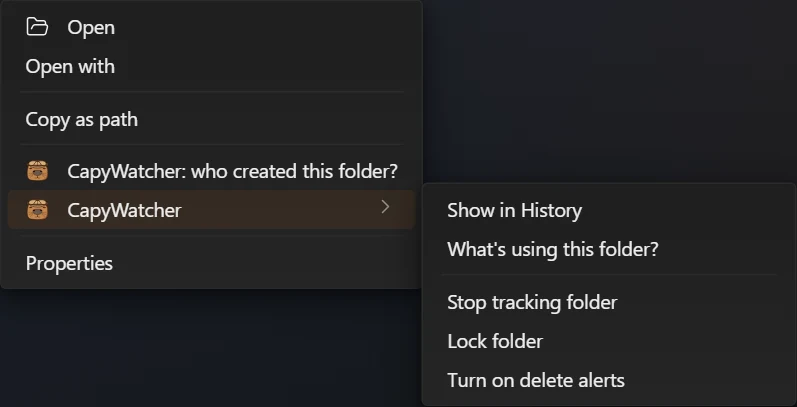
- Stop tracking folder
On a tracked folder, the submenu shows Stop tracking folder (1) instead. Select it, and the app unchecks the folder’s row in Tracked folders. The files it already recorded stay in History.
A locked folder can’t stop being tracked: the item is greyed out until you unlock it, as the app’s own tooltip says, “Unlock the Invoices folder before you stop tracking it.”, with your folder’s name.
Track a whole drive
Right-click a drive in Explorer, such as D: under This PC, then select CapyWatcher and Track drive. On a tracked drive, the item reads Stop tracking drive. A drive’s submenu has no “who created” entry and no lock, since a whole drive can’t be locked.
What else the submenu holds
Show in History comes first on every submenu: it opens the app on History, searched for the folder’s path, or for the file you right-clicked. On a tracked folder, the submenu also holds Lock folder and the delete alerts, and on every item What’s using this file?.
The submenu shows when one item is selected. With several selected, only the entry CapyWatcher: who created these? shows.
Important
Tracking starts the moment you choose it. Files that were already in the folder have no record, and the app records only new files from then on.
Locks and delete alerts from the menu
Explorer’s right-click menu can lock a tracked folder or turn on its delete alerts, without opening CapyWatcher first. The app asks the same question it asks in Tracked folders, and the change shows there.
Where the items are
- In Explorer, right-click a tracked folder. On Windows 11, select Show more options at the bottom of the menu.
- Point at CapyWatcher to open its submenu.
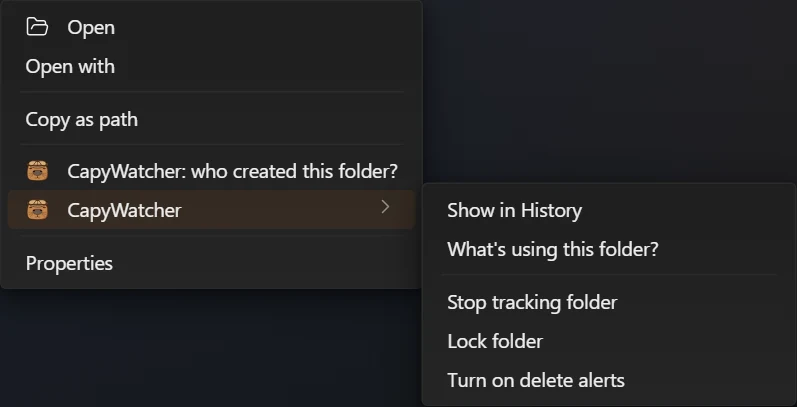
- Lock folder
- Turn on delete alerts
The two items show only on a tracked folder. On a folder you don’t track yet, select Track folder first.
Lock a folder
Select Lock folder (1). The app opens on Tracked folders and asks “Lock the Invoices folder?”, with your folder’s name: “Nothing can delete, move or rename files in it while it’s locked, you included.” Select Lock.
New files can still be saved in a locked folder, and files in it can still be changed, though some programs can’t save changes there while it’s locked. On a locked folder, the item reads Unlock folder, which asks “Unlock the Invoices folder?” before files in it can be deleted, moved and renamed again.
Some folders can’t be locked, because Windows or your programs need to change files in them, such as the Windows folder. On those the item is greyed out. A drive can’t be locked either. Locking a folder lists them all, with what a lock stops.
Turn on delete alerts
Select Turn on delete alerts (2). The app asks “Turn on delete alerts for the Projects folder?”, with your folder’s name: “When a program deletes files in it, a Windows notification says which program and how many files.” Select Turn on.
On a folder with alerts on, the item reads Turn off delete alerts, which asks “Turn off delete alerts for the Projects folder?” and stops the notifications. Delete alerts shows the notification and its buttons.
Skip the questions
Each of these four questions has a box, “Don’t show this again”. Checked when you confirm, the item does its work at once next time. Options brings a question back under Popups: see Notifications and popups.
Important
A delete alert names the program and counts the files it deleted, but it doesn’t bring them back. A lock stops deletes, moves and renames in the folder, not changes inside its files, and a program running as administrator can remove it.