





History is where everything the app recorded comes together. Read its columns, narrow the list down to the files you’re after, look up one file, and save the rows to a CSV file.
Reading History
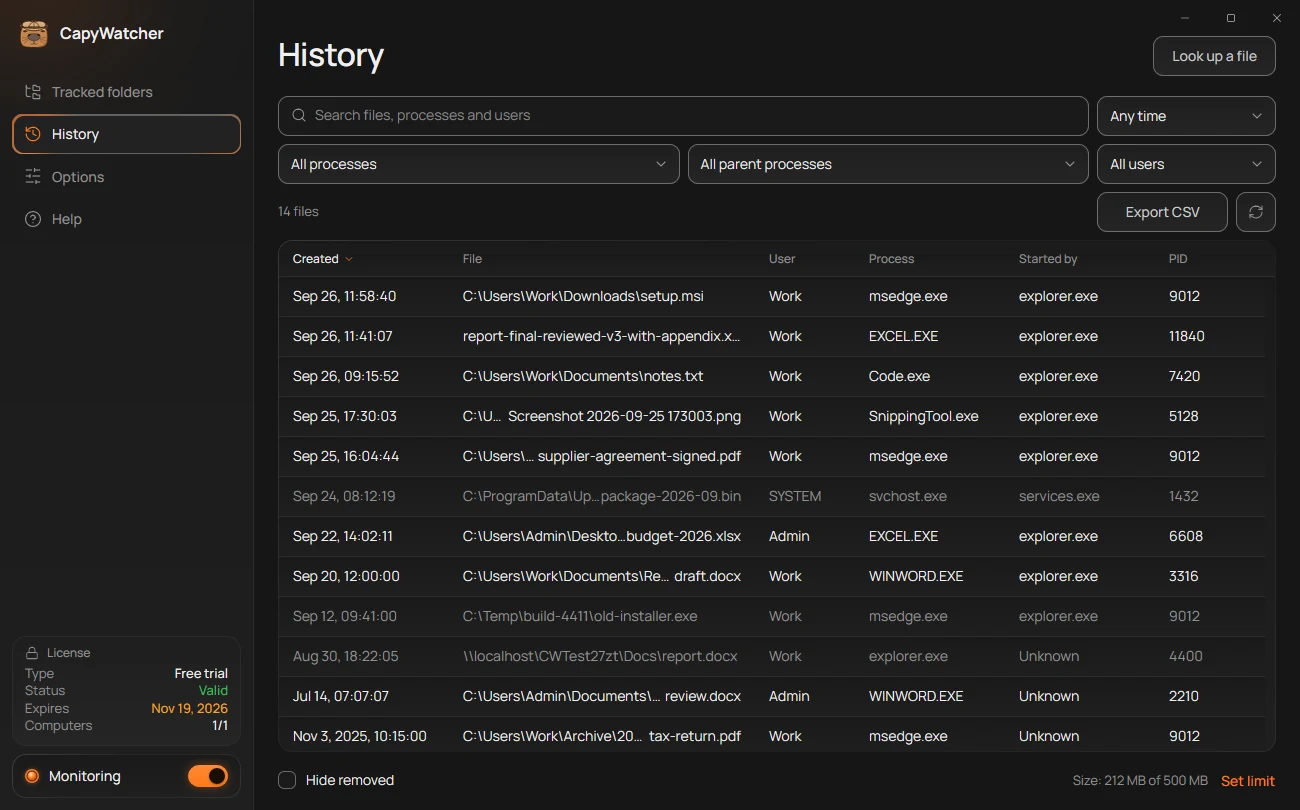
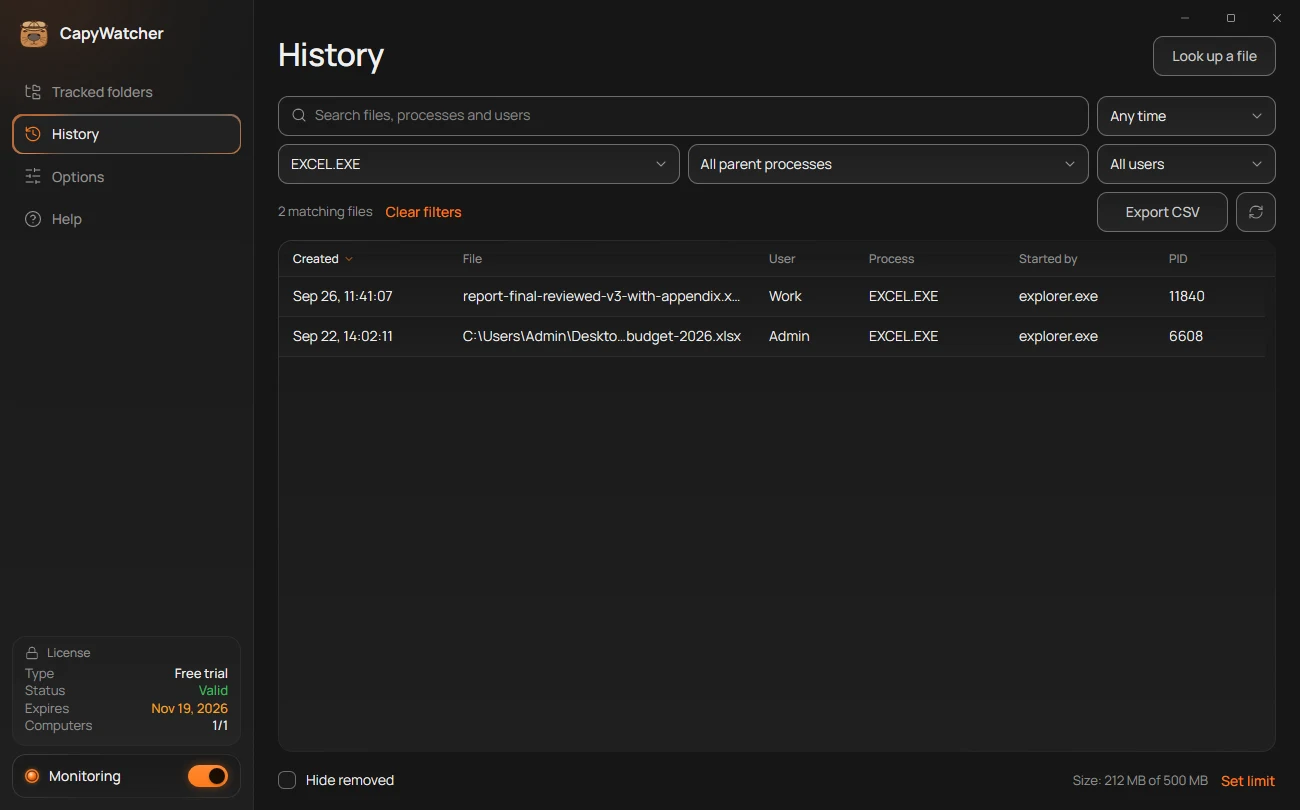
History lists every new file the app recorded in your tracked folders, newest first, with the program that created it. Open it from the left column of the app. Where the right-click answer starts from one file, History starts from everything: what a program made, what appeared yesterday, what a user saved.
- The count
- Process
- Started by
- A removed file
- Hide removed
- The size line
- Look up a file
The columns
- Created: the date and time the file appeared, in your computer’s time. The year shows for files from another year.
- File: the file’s full path. A long path is cut in the middle, and its tooltip shows it whole.
- User: the Windows account the program ran under.
SYSTEMis Windows itself. - Process (2): the program that created the file. A process is a program while it runs, named after its program file, such as
msedge.exefor Microsoft Edge. - Started by (3): the program that started that one, skipping the command windows in between.
explorer.exeis File Explorer, which starts the programs you open yourself. “Unknown” means no such program was found. - PID: the number Windows gave the process while it ran. It tells apart two runs of the same program.
Select a column’s heading to sort by it, and select it again to reverse the order. Created sorts newest first, the others from A to Z.
Above the table, the count (1) says how many files the list holds, such as “14 files”. With a search or a filter on, it reads “2 matching files”.
Removed files
A muted row (4) is a file that isn’t there anymore: it was deleted, moved out of your tracked folders or sent to the Recycle Bin. The row stays, so you still know which program created it. Screen readers say “Removed” for it.
A file restored from the Recycle Bin is shown as before, with the program that created it. To see only the files that are still there, check Hide removed (5) at the bottom. The app remembers the choice for your Windows account.
One row per file
A file made again with the same name replaces its row, so the row shows its latest creation. When a program renames a file, its row takes the new name and keeps the program that created it. A file downloaded by a browser, which saves it under a temporary name first, shows the browser.
Records older than the time Options keeps them for are removed, and so are the oldest when History reaches its size limit, if you chose that.
The size line
At the bottom right, the size line (6) shows how much space History takes, such as “Size: 212 MB of 500 MB”. Select Set limit to change the limit in Options, as Saved history shows.
The same place shows when recording isn’t on:
- “Monitoring stopped.” with Start, when the app’s recording stopped unexpectedly.
- “Monitoring is off.” when you turned it off: see Turning monitoring off and on.
- “No folders are tracked.” with Choose folders, which opens Tracked folders.
When the list is empty
- “No files recorded yet”: nothing was created in your tracked folders since you chose them. “New files in your tracked folders appear here.”
- “No matching files”: the search, the filters or Hide removed leave nothing to show. “Try a different search or time range.”
New files appear in the list on their own. The button with two arrows, next to Export CSV, reloads the list. The list loads more rows as you scroll, so a long History opens quickly.
What to do from here
- Filter the list by program, user, parent process or time.
- Right-click a row for its menu: copy its path, open its folder, show only its program.
- Select several rows and copy them.
- Hide a program that fills the list.
- Look up a file with the button at the top right (7).
- Export the list to a CSV file.
After the free trial, without a license, History keeps recording every new file, and the program’s columns read “Shows with a license” until you enter a license key.
Important
History holds only new files created in your tracked folders while monitoring was on, from the day you installed the app. It doesn’t record changes inside a file. A removed file shows the program that created it, not the program that removed it: for that, turn on delete alerts.
Filtering the list
History can hold thousands of files. Above the table, a search field and four lists narrow it down to the ones you’re after: one file, what one program made, what appeared yesterday.
- Search
- Time range
- Process
- Parent process
- User
- The count and Clear filters
Search for a file, a program or a user
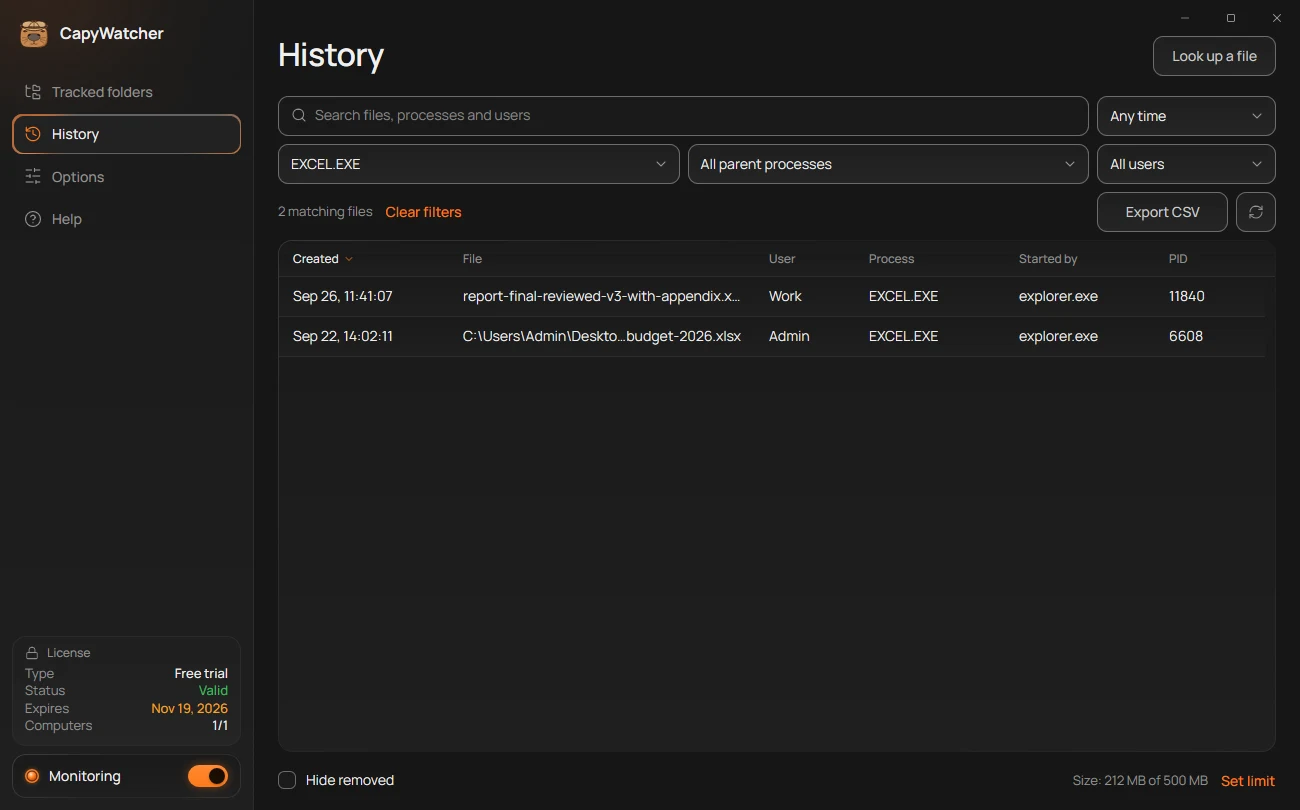
Type in the search field (1), “Search files, processes and users”. The list keeps the rows whose file path, process, parent process or user holds what you typed, wherever it appears. Type a file’s name to find it, part of a folder’s path to see what was made there, or node to see the files of every program with that in its name.
Narrow the list with the four lists
- Time range (2): Any time, Last 24 hours, Last 7 days or Last 30 days.
- Process (3): the program that created the files. Each program in the list shows how many files it created, so the busiest ones stand out.
- Parent process (4): the program that started it, the Started by column. Choose an AI agent here, such as
claude.exe, to see every file made by the programs it ran. - User (5): the Windows account the program ran under.
The lists combine with each other and with the search: Process node.exe with Last 24 hours shows what node.exe created since yesterday at this time.
A row’s menu sets the same lists in one step: right-click a row and choose Show only this process, Show only this parent process or Show only this user. See A file’s menu.
Clear the filters
With a search or a filter on, the count (6) reads “2 matching files”, and Clear filters next to it sets the search and every list back at once. It doesn’t change Hide removed at the bottom, or the programs you hid from History.
When nothing matches, the list says “No matching files” and “Try a different search or time range.”
Tip
Export CSV saves exactly the rows the filters show, so filter first, then export.
Important
The search and the lists look only through what History recorded: new files in your tracked folders since you chose them. A file older than that, or outside them, won’t come up however you search.
Looking up a file
Explorer’s right-click menu is the quickest way to ask which program created a file. With CapyWatcher’s window open, two more ways lead to the same answer: a button in History, and dragging files onto the window.
Use the Look up a file button
- Look up a file
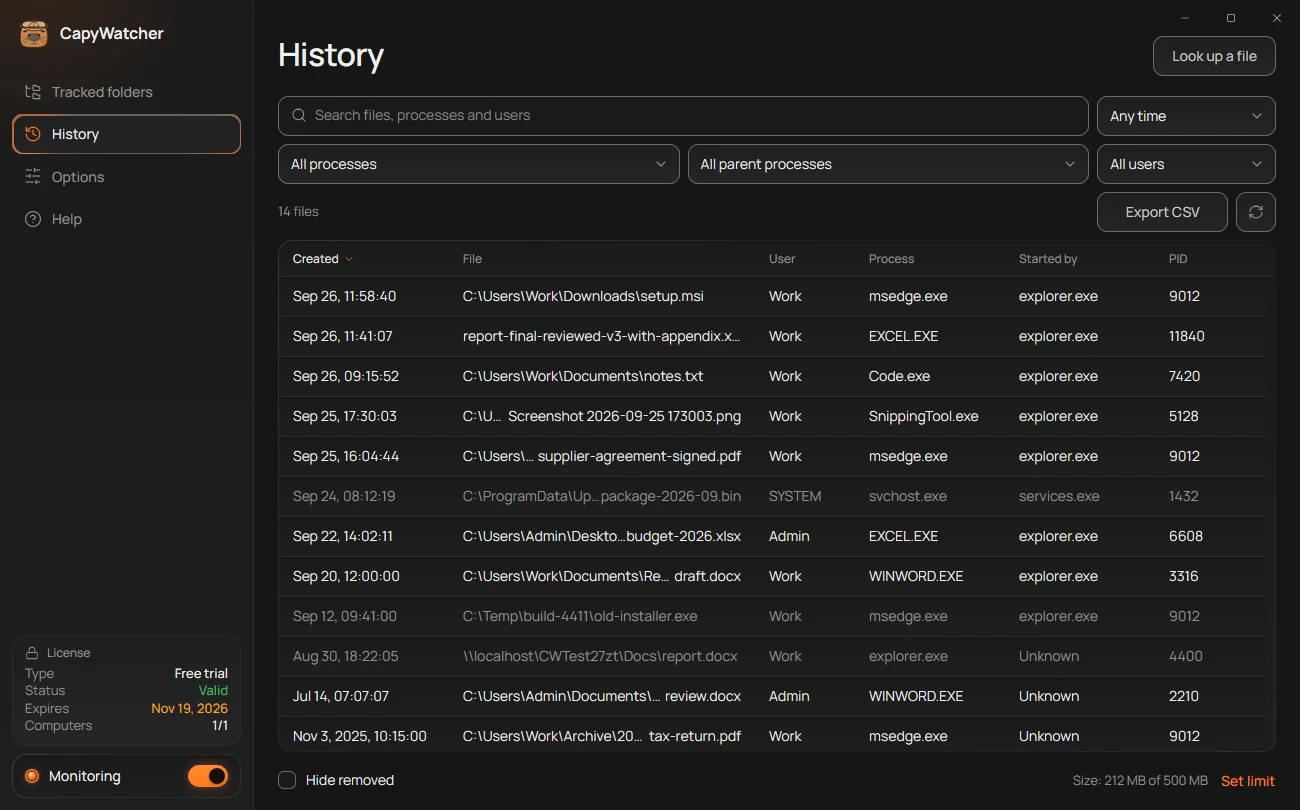
The button sits at the top right of History (1):
- Open CapyWatcher and select History in the left column.
- Select Look up a file.
- In the window that opens, “Look up files”, choose one file, or several with Ctrl or Shift, then select Open.
The answer opens next to the pointer, the same window as from Explorer’s menu. This window picks files only. To look up a folder, drag it onto the app or use Explorer’s menu.
Drag files onto the window
Drag one or more files or folders from Explorer and drop them anywhere on CapyWatcher’s window, on any view. While you drag, the label next to the pointer reads “Look up in CapyWatcher”. When you let go, the answer opens.
The window takes the drop only when no dialog or menu of the app is open.
Read the answer
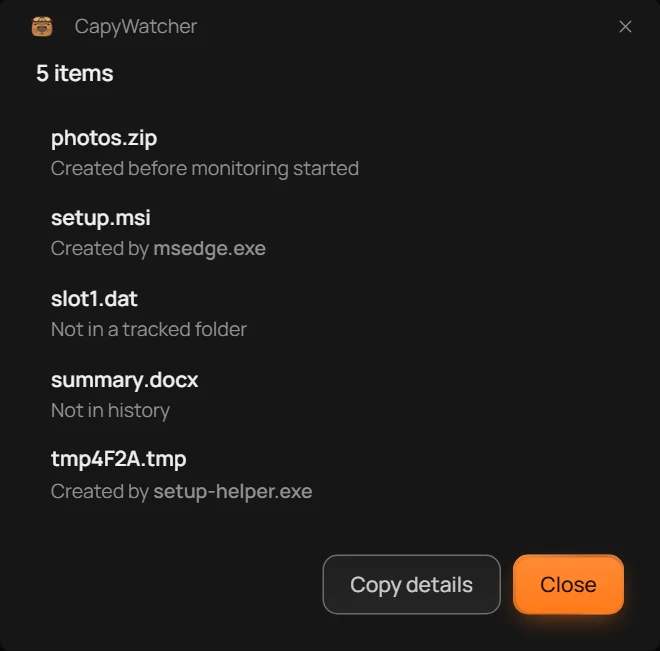
The answer names the program that created each file, the program that started it, and when. For several files, it lists them, each with its answer:
- The count
- One file’s answer
- Copy details
Every part of the answer, from Started by to Copy details (3), is explained on Who created this file?.
Important
Looking up a file answers only for new files created in your tracked folders while monitoring was on, from the day you installed the app. Any other file gets an answer that says why there’s no program to show.
Exporting history
Export CSV saves History’s rows to a CSV file, a plain table that Excel, LibreOffice and Google Sheets open. Use it to keep a record, to sort and count in a spreadsheet, or to send someone the files a program made.
- Export CSV
- What gets exported
- A filter in use
Export the list
- In History, set the search and filters to the rows you want, as Filtering the list shows. The count (2) says how many rows that is.
- Select Export CSV (1).
- In the window that opens, “Export history”, choose a folder. The file’s name is ready, such as
CapyWatcher history 2026-11-17.csv, with today’s date. Select Save.
The message “Exported 2 files to CapyWatcher history 2026-11-17.csv.” shows where the count was, with Show in folder, which opens the file’s folder in Explorer.
What the file holds
The file holds exactly the rows the list shows: your search, your filters (3) and Hide removed apply, and hidden programs are left out. The rows come newest first, with these columns:
- File: the full path.
- Process: the program that created the file.
- Started by: the program that started it.
- Parent processes: the chain of programs that led to it, nearest first.
- PID: the number Windows gave the process.
- User: the Windows account it ran under.
- Created: the date and time, in your computer’s time.
The file is written in UTF-8 with a mark Excel reads, so names in any language open as they should when you double-click it.
After the free trial, without a license, the file holds only the File and Created columns, as History shows only those.
If it doesn’t work
- “Couldn’t export. Try again.”: something went wrong while writing. Try again.
- “Couldn’t save CapyWatcher history 2026-11-17.csv. Choose another folder and try again.”, with the file’s name: Windows didn’t let the app write there. Choose a folder of yours, such as Documents.
- “CapyWatcher history 2026-11-17.csv isn’t there anymore.”: the file was moved or deleted before Show in folder could open it.
Tip
For a few rows, there’s no need for a file: select them and press Ctrl+Shift+C to copy them as CSV, ready to paste. See Selecting and copying rows.