





While its window is closed, CapyWatcher stays in reach through its icon next to the clock and through Windows notifications. The notifications about deleted files and locks matter most, so they come right after the icon.
The tray icon
When you close CapyWatcher’s window, the app usually keeps running in the tray. The tray is the row of small icons at the right end of the taskbar, next to the clock. Windows hides some of them behind a ^ button: select it to see the hidden ones, then drag CapyWatcher’s icon onto the taskbar if you want it always in view.
What the icon shows
The icon is CapyWatcher’s capybara, and it changes with monitoring, the app’s recording of new files:
- In color while monitoring is on.
- In grey while monitoring is off.
- With a small warning dot when monitoring stopped by itself.
Rest the pointer on the icon to read the same in words, for example “CapyWatcher. Monitoring is on.”
Open the app
Select the icon once, or press Enter on it, and the main window opens on the view you used last.
The icon’s menu
Right-click the icon to open its menu.
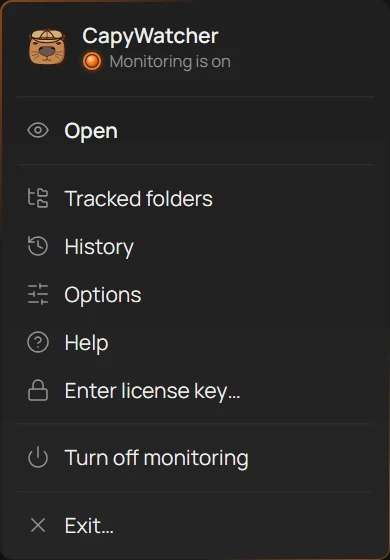
- The state
- Open
- Enter license key
- Turn off monitoring
- Exit
- The state (1) says “Monitoring is on”, “Monitoring is off” or “Monitoring stopped”.
- Open (2) brings the main window to the front. Tracked folders, History, Options and Help open the window on that view.
- Enter license key… (3) opens the box for your key during the free trial and after it ends. With a license, the item reads License… and opens Help, where your license is shown. More on Entering a license key.
- Turn off monitoring (4) pauses recording at once, with no question. While monitoring is off, the item reads Turn on monitoring, and when monitoring stopped by itself, Start. Turning monitoring off and on says what stops meanwhile.
- Exit… (5) ends the app, after a question.
Exit and what keeps running
Exit closes CapyWatcher’s window and its tray icon. The app’s service goes on: it’s the part of CapyWatcher that records new files in the background, and it doesn’t need the window. Before it closes, the app asks:
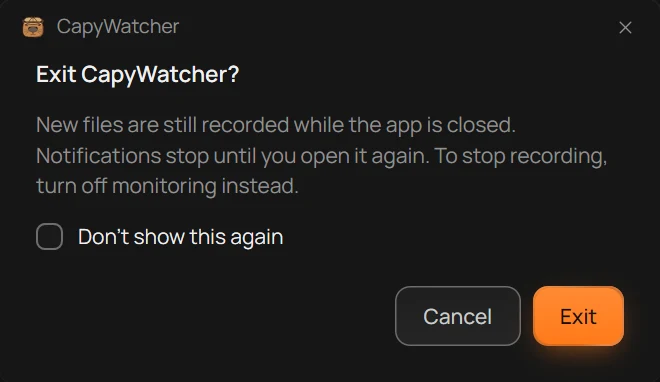
- What keeps running and what stops
- Exit
- Cancel
- Don’t show this again
The line (1) says it plainly: “New files are still recorded while the app is closed. Notifications stop until you open it again. To stop recording, turn off monitoring instead.” While monitoring is off, the line says “Monitoring is off.” instead.
Select Exit (2) to close the app, or Cancel (3) to keep it. Check Don’t show this again (4) before you select Exit, and the app closes at once next time. The switch Ask before exiting in Options brings the question back: see Notifications and popups.
While the app is closed, no notification comes: no delete notification, no update or license notice. Open CapyWatcher from the Start menu to have them again, or turn on Start with Windows in Startup and closing so it opens in the tray each time you sign in.
The “still running” notification
The first time you close the window while Close to tray is on, a notification says “CapyWatcher is still running” and “It’s in the tray, next to the clock. Right-click its icon for more.” It shows once, so you know where the app went.
Important
Neither closing the window nor Exit stops recording. To stop recording new files, turn off monitoring, from this menu or from the switch at the foot of the main window’s left column.
Delete notifications
These notifications come from two choices you make per folder in Tracked folders: delete alerts, which tell you when a program deletes files, and a lock, which refuses deletes, moves and renames. Windows shows them at the bottom right of the screen, and keeps them in its notification center, which opens from the clock.
Files deleted in a folder
When a program deletes files in a folder with delete alerts on, this notification shows within a couple of seconds.
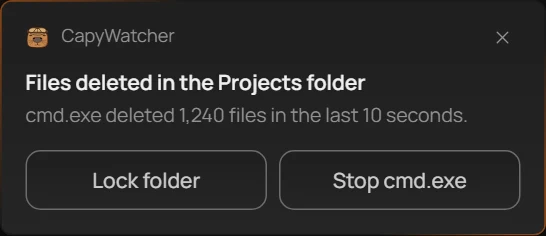
- The program and the count
- Lock folder
- Stop the program
The line (1) names the program that deleted the files and how many it deleted, for example “cmd.exe deleted 1,240 files in the last 10 seconds.” The program is named by its process, the name Windows gives the running program, such as cmd.exe for Command Prompt. While the program goes on deleting, the same notification keeps counting without popping up again. After a minute with no delete, the next delete brings a new one.
You have two buttons:
- Lock folder (2) locks the folder at once, so no program can delete, move or rename the files still in it. The notification is the question, so no other comes, except on a folder where a lock may get in the way of a program, such as one OneDrive syncs: there the app first asks “Lock the Projects folder anyway?” with the folder’s name. On a folder that can’t be locked, the button isn’t there.
- Stop cmd.exe (3), with the program’s own name, ends that program. It isn’t offered for File Explorer, for CapyWatcher itself, or for a program that runs as SYSTEM or under another account.
Select the notification itself to open Tracked folders.
If you didn’t expect the delete, lock first: the lock holds even if the program starts again. Then find out what the program is before you delete anything else.
Couldn’t stop a program
When Stop doesn’t work, a notification says “Couldn’t stop cmd.exe” with “It may have ended already, or it runs as administrator.” A program running as administrator has more rights than the app gives itself to end it. Lock the folder instead, or close the program yourself.
Deleting stopped in a locked folder
When a program tries to delete files in a locked folder, Windows refuses, and CapyWatcher may tell you so.
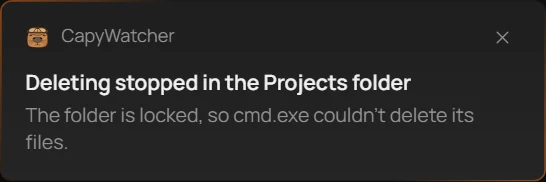
- The program the lock stopped
The line (1) names the program the lock stopped. This notification shows at most once a minute for the same program and folder. Windows doesn’t report every refused delete, so some programs’ attempts show no notification even though the lock refused them.
Lock put back on a folder
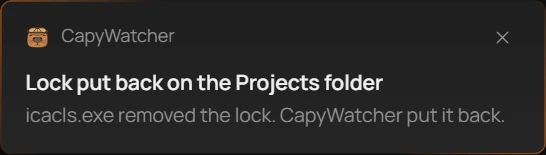
A program running as administrator can remove a folder’s lock. The app finds a removed lock within about 2 seconds and puts it back, then tells you.
- Who removed the lock
The line (1) names the program that removed the lock when Windows reports it, or says “A program removed the lock. CapyWatcher put it back.” when it doesn’t. During those 2 seconds, the program could delete files in the folder.
If the app can’t put the lock back, the notification says “Couldn’t put the lock back on the Projects folder” with the folder’s name, and, for example, “icacls.exe removed the lock. Files in this folder can be deleted until it’s back.” Tracked folders shows a banner meanwhile, and the app tries again every minute.
These notifications have no buttons. Select one to open Tracked folders. At most one shows per folder per minute, but the lock goes back each time.
When Windows blocks the notifications
Windows can turn off an app’s notifications, in its Settings under System, then Notifications, or with Do not disturb. Options then says “Windows is blocking notifications from CapyWatcher.” with an Open Windows settings button that opens that page. Turn on notifications for CapyWatcher there.
Important
A notification tells you what happened. Files deleted before you locked the folder are gone: the app doesn’t bring them back. Look in the Recycle Bin, in OneDrive’s or the folder’s previous versions, or in your backup. Delete notifications come only while CapyWatcher runs, in its window or in the tray, and while monitoring is on.
Other notifications
Besides the delete notifications, CapyWatcher shows a few others, each for one reason. They come only while the app runs, in its window or in the tray. Select one to open the place in the app it’s about.
History is almost full
“History is almost full” with “History is using 1.8 GB of its 2 GB limit.”, in your own sizes, shows when History reaches 90% of its size limit. History is the app’s record of the new files it saw.
Select Change limit to open Options at the size limit, and raise it or let the app remove the oldest records: see Saved history. The switch History almost full in Options turns this notification off. It only works while the size limit is on.
Old records removed
“Old records removed” says, for example, “Removed the 120 oldest records to keep history under 2 GB.” It shows when you chose Remove oldest records in Saved history and the app removed some to stay under the limit. Those records can’t be brought back. The switch Old records removed turns it off.
Update available
- The new version
- Update
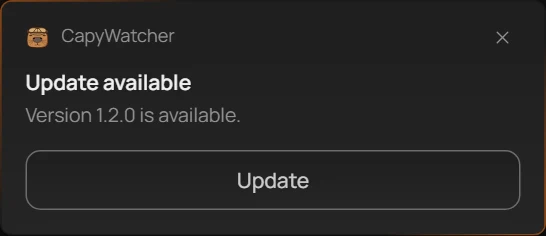
“Update available” names the new version (1). It shows once per version, when the app’s daily check finds one and Automatic updates is off. Select Update (2) to install it now, or the notification to open Options at Updates. Nothing installs until you choose. Updates explains the rest.
After an update, “CapyWatcher is updated to version 1.2.0.” says it’s done, with the version you now have. The switch Update available turns both off.
Monitoring stopped
“Monitoring stopped” with “New files aren’t recorded until it starts again.” means the app’s service, the part that records new files, stopped without you turning monitoring off. It shows after 7 minutes in that state, once Windows’ own tries to start the service again have failed, so a short gap shows only in the app.
Select Start on the notification to start monitoring again. If that fails, “Couldn’t start monitoring” says “Restart your computer and try again.” These two have no switch: you need to know when nothing is recorded. More on Turning monitoring off and on.
The free trial and the license
- “Your free trial ends tomorrow.” shows the day before the last day of the free trial.
- “Your free trial has ended.” adds “Monitoring still records new files. A license shows who created them.”
Both stay on screen until you close them, and both have a See license button that opens Help, where your license is shown. The yearly plan, which is no longer sold, has its own two notifications for people who still have one: when it has ended, and when its 14 extra days are running. The switch Trial and license turns all of them off.
CapyWatcher is still running
The first time you close the window while Close to tray is on, a notification says “CapyWatcher is still running” and where to find it: see The tray icon. It shows once.
Turn notifications on or off
Open Options and scroll to Notifications. Each switch names the notification it controls: see Notifications and popups. Windows’ own settings apply on top: if Windows blocks CapyWatcher’s notifications, none shows, whatever the switches say.
Tip
Missed one? Windows keeps recent notifications in its notification center: select the clock at the right end of the taskbar.