





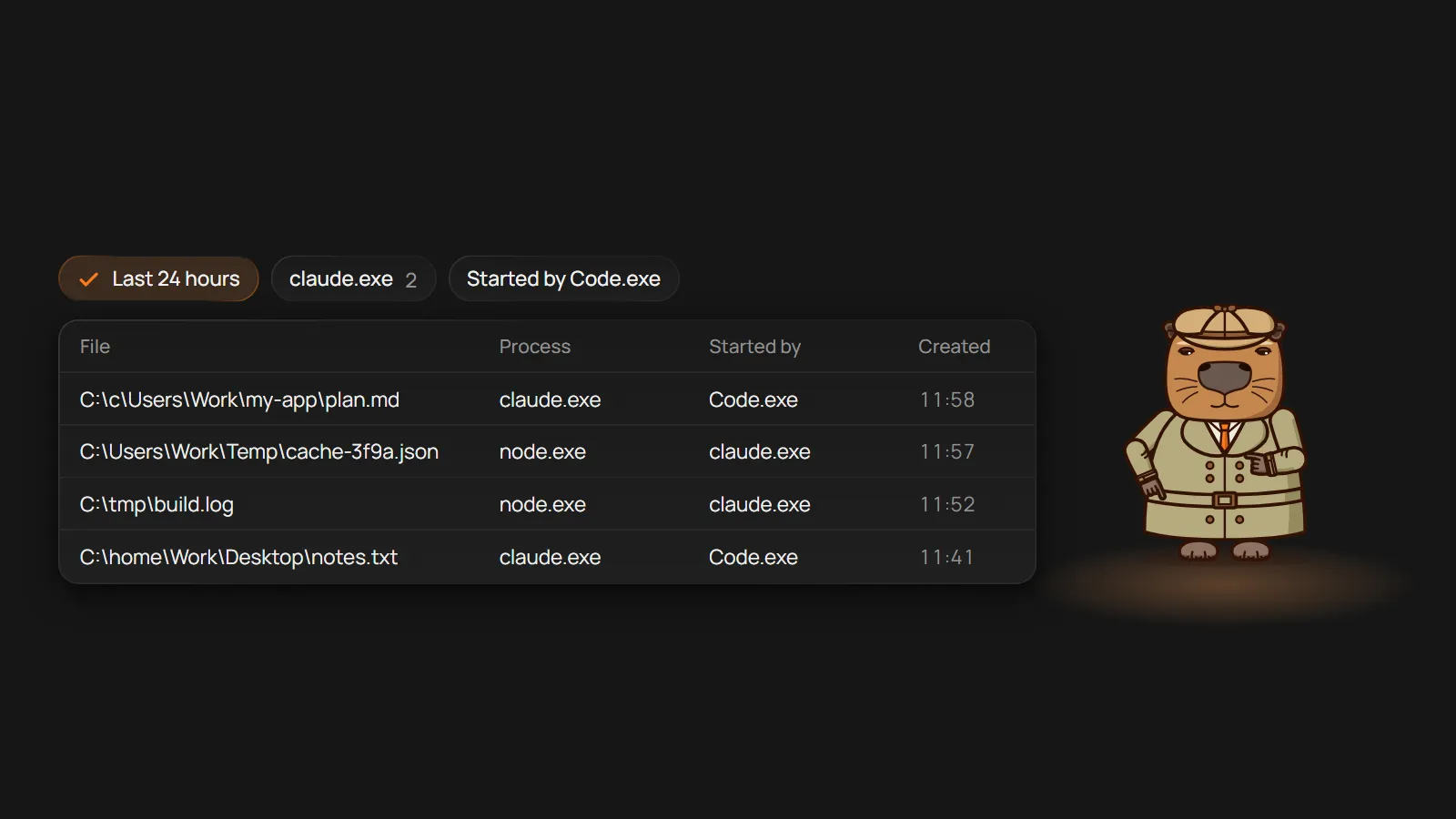
If a file ever showed up on your computer and you couldn’t tell what program created it or where it came from, this is the story of the app I built for that. It began as a utility for my own Windows 11 computer, with no plan to make it a product.
One day I was building a new free tool for CapyToolkit, with AI agents writing most of the code in VS Code. Then folders started showing up on my C: drive and my desktop that had no reason to be there. One was C:\c\Users\Work\..., a whole path turned into folders under the root of C:. Another was C:\home\<user>\Desktop, Ubuntu’s desktop folder, rebuilt on a Windows drive.1
The agents were getting paths wrong, or writing Linux paths on my Windows 11 computer. After that, more and more odd tmp folders turned up in random places. Every one of them raised the same question: what program created it?
Looking for a way to tell what program created a file
Most answers I found online pointed to Microsoft’s own tools: Process Monitor,2 file system auditing read in Event Viewer,3 and PowerToys.4 For what I needed, each one took a long and fiddly setup, and some had to be set up again after every restart. In the same search, I read about someone who left Process Monitor running for hours. Then the warnings came: only a few kilobytes of free space were left, and the computer stopped responding. Where each one stops helping is a story for another post.
A first version, just for my computer
So I quickly built a first version for myself. It had the plain default Windows look and one item in the right-click menu, which showed the name of the last process that created the file. Often that name didn’t help much.
A file could come from svchost.exe, the program Windows runs its services in, started by services.exe.5 Or it came from claude.exe, when what I wanted to know was that Claude Code in VS Code had started it. In VS Code I was running Claude Code, Kilo Code and Grok Build side by side, each on its own workflow. A process name alone couldn’t tell me which agent made the mess.
That’s why “Started by” became the key change. The app now shows the program that created a file next to the program that started it, so claude.exe sits beside Code.exe. Once I could see which agent made each mistake, I could fix the workflow behind it.
Not only my problem
Then it struck me that people had this need long before AI agents wrote code. Some want to know what malware left on their computer. Others just want to know what’s on it and where it came from.
So I kept researching, and I found no tool that was easy to use and had a friendly interface. That’s when I decided to give it a try and build it for people, not only for me.
From watching folders to locking them
While I was working on it, I saw a post on X from someone whose AI agent had deleted their data on the C: drive. It gave me the next idea. My app only recorded new files, and nothing in it could keep a folder’s files from being deleted.
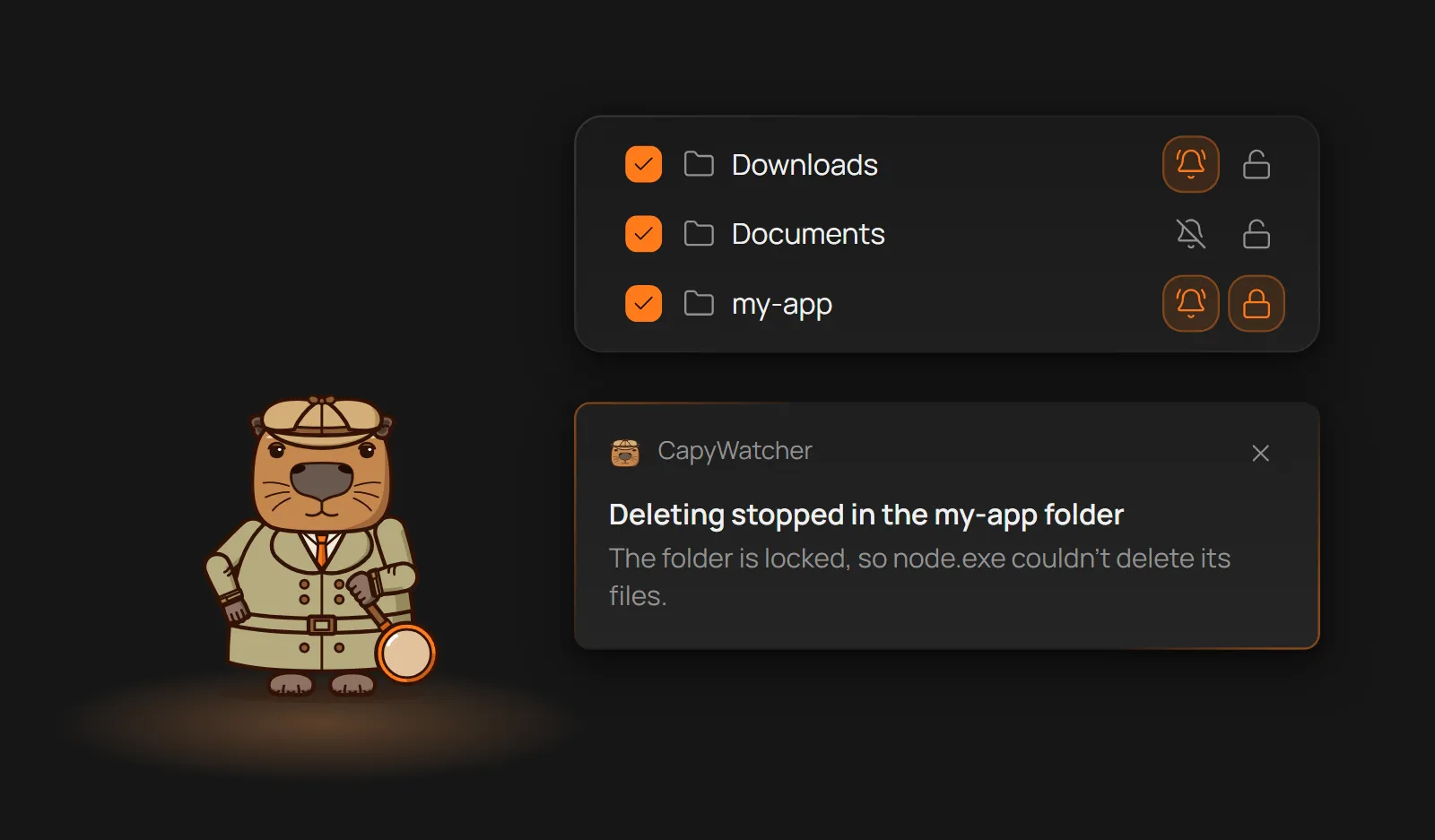
So I added two ways to guard a folder, and you can turn on either one or both. A locked folder refuses deletes, moves and renames from every program, you included, until you unlock it. A program running as administrator can remove the lock, and the app puts it back. Delete alerts let the files go, but a Windows notification says which program deleted them and how many.
For coding agents, that sets limits. A locked folder keeps its files when an agent runs the wrong command, and wrong commands from AI agents happen often. An alert tells you the moment an agent deletes files where it shouldn’t be working at all.
What’s using this file, and who else it’s for
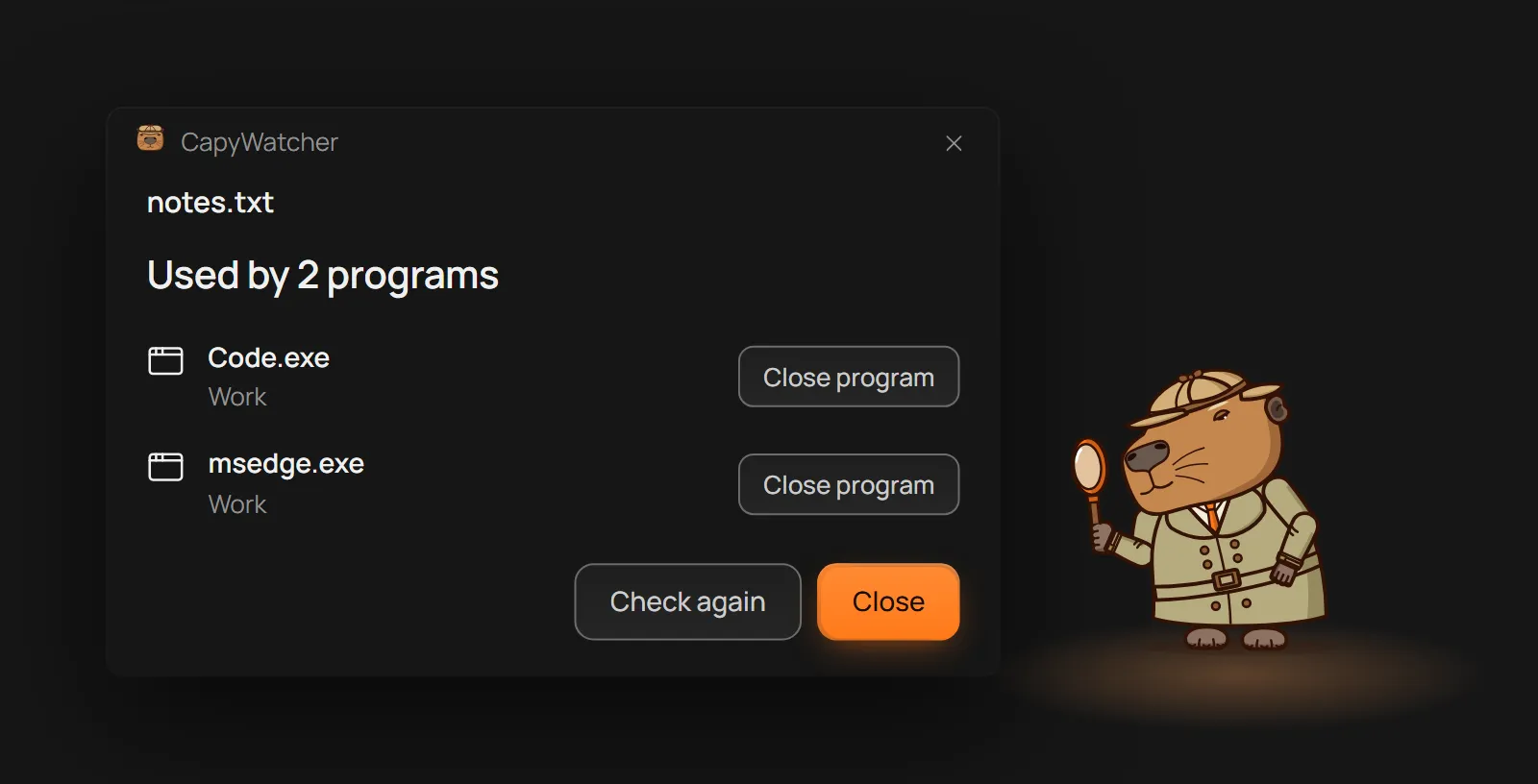
After the locks, one gap was left. When a file won’t delete, which program is holding it? So “What’s using this file?” joined the right-click menu. It lists the programs using the file, and you can close one from there.
Most of my thinking still circled around building with AI agents in VS Code and Claude Code. With each new feature, though, I saw more uses. The app can show unusual activity on a drive. For IT staff, it shows which files land in the tracked folders of the company’s computers, from which program and under which Windows user. Schools and other places with many computers have the same need.
That’s where network drives, shared folders and USB drives came in. You track a folder on a USB drive like any other. On a network drive or share, the app records what programs on your computer do there, and delete alerts work, but folder locks don’t.
Where CapyWatcher is now
What started as a plain window on my own computer is now an app for everyone who wants to know where their files come from. It watches only the folders you choose, and the history stays on your computer. You can try every feature free for 7 days, with no card and no email, and the pricing page has the plans.
Sources
- 1.
freedesktop.org, “xdg-user-dirs,” freedesktop.org, accessed November 2026. https://www.freedesktop.org/wiki/Software/xdg-user-dirs/ (opens in a new tab)
- 2.
Mark Russinovich, “Process Monitor,” learn.microsoft.com, November 2026. https://learn.microsoft.com/en-us/sysinternals/downloads/procmon (opens in a new tab)
- 3.
Microsoft, “Audit File System,” learn.microsoft.com, September 2021. https://learn.microsoft.com/en-us/previous-versions/windows/it-pro/windows-10/security/threat-protection/auditing/audit-file-system (opens in a new tab)
- 4.
Microsoft, “Microsoft PowerToys,” learn.microsoft.com, October 2026. https://learn.microsoft.com/en-us/windows/powertoys/ (opens in a new tab)
- 5.
Microsoft, “Service host grouping in Windows 10,” learn.microsoft.com, July 2017. https://learn.microsoft.com/en-us/windows/application-management/svchost-service-refactoring (opens in a new tab)